| Quick Summary |
|---|
A Barudan machine needs a digitized stitch file, not a regular logo image.
|
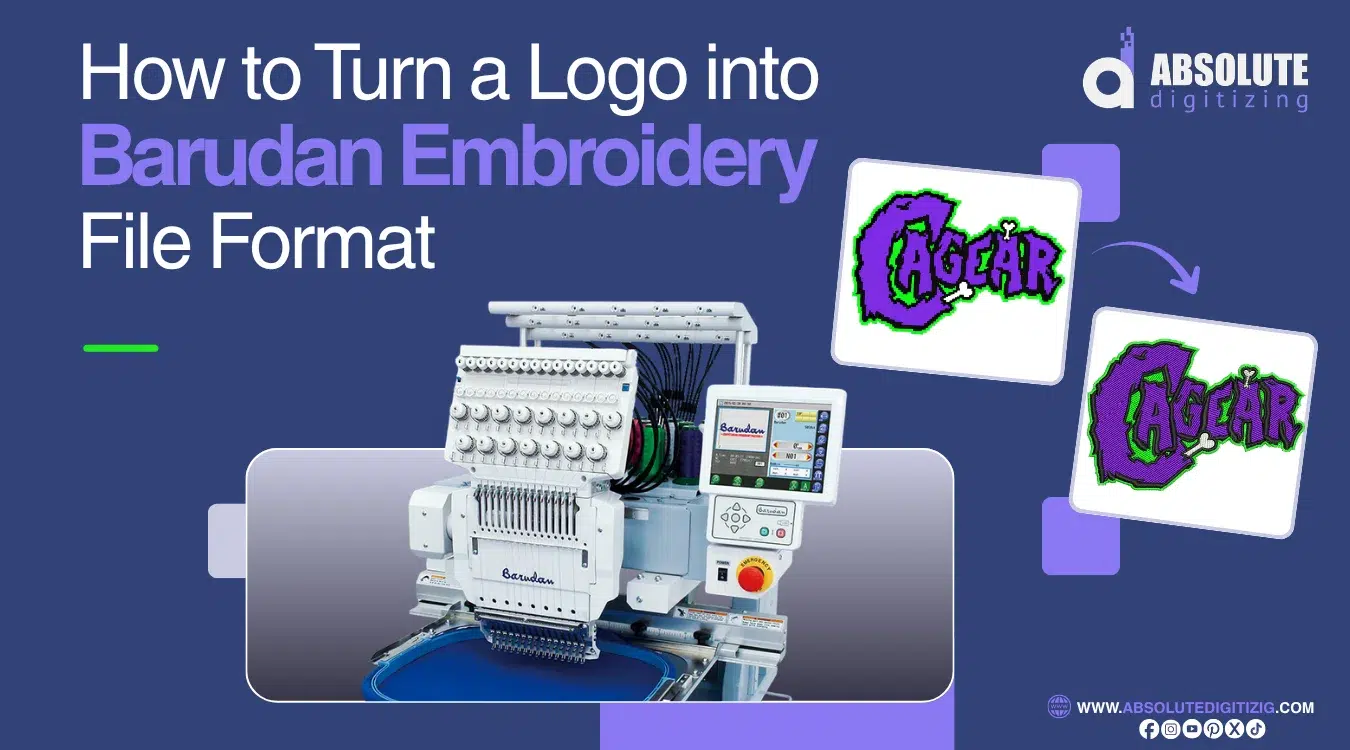
A logo needs more than a clean image before a Barudan machine can stitch it. JPG, PNG, PDF, AI, and SVG files only show the artwork. They do not tell the machine where to place each stitch, when to trim, or how to follow the design path.
However, the right digitizing process can turn your logo into a Barudan-ready embroidery file with better stitch flow, cleaner edges, and fewer production issues.
This guide explains what format you may need, how the process works, and when professional logo digitizing services can save time.

- Quick Answer: What File Do You Need for a Barudan Machine?
- What Does Barudan Embroidery File Format Mean?
- Barudan File Formats Explained: DSB, U03, U01, FDR, PRJ, and DST
- Can You Convert a JPG or PNG Logo Directly into a Barudan File?
- Step-by-Step: How to Prepare a Logo for Barudan Embroidery
- Why Won’t My Barudan Embroidery Machine Read My File?
- When Should You Hire a Professional Digitizer for a Barudan File?
- Final Checks Before Loading the File on a Barudan Machine
- Final Thoughts
Quick Answer: What File Do You Need for a Barudan Machine?
A Barudan machine needs a machine-readable embroidery file, not a flat logo image. The right choice depends on your machine model, software, and transfer method.
Common options include:
- DSB
- U03, U01, or FDR
- PRJ
- DST
However, JPG, PNG, PDF, AI, and SVG files will not stitch by themselves. A digitizer must create stitch data first, then export the right Barudan-ready file.
What Does Barudan Embroidery File Format Mean?
A Barudan embroidery file format is a stitch file that gives the machine sewing instructions. It is not the same as a JPG, PNG, PDF, AI, or SVG logo. Those files show artwork, but they do not control the needle.
However, a machine file tells the Barudan system how to build the design on fabric. It may include:
- Needle movement
- Stitch path
- Stops and trims
- Color sequence
- Design size when the format supports it
Also, a clean logo still needs digitizing. The digitizer must plan stitch types, stitch direction, density of stitches, and underlay before export.
Barudan workflows may use DSB, U03, U01, or FDR, PRJ, or DST. The right format depends on the machine model, transfer method, and software setup.
Barudan File Formats Explained: DSB, U03, U01, FDR, PRJ, and DST
DSB
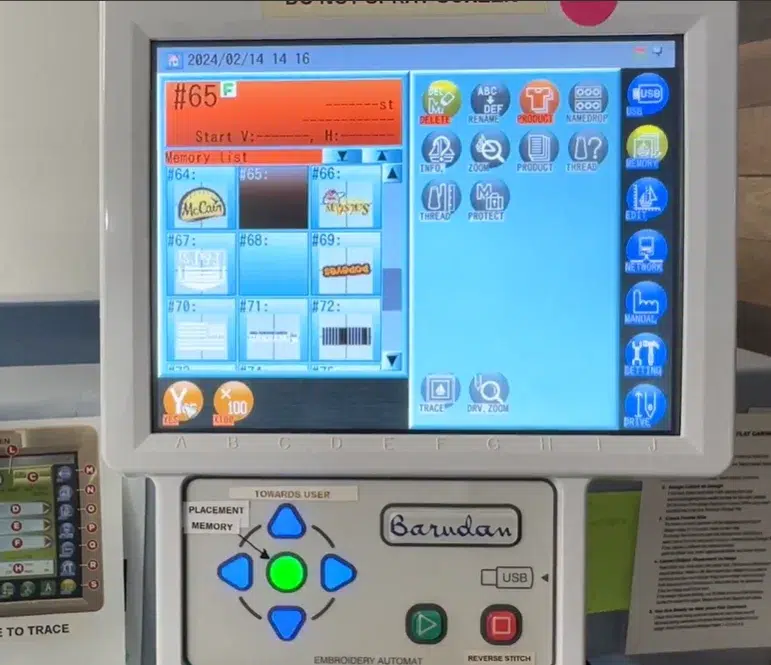
DSB is a Barudan stitch format used in many machine workflows. It carries the stitch instructions the machine follows during sewing. Shops may use it when they need a Barudan specific file for direct machine use.
U03, U01, and FDR
U03 and U01 connect to Barudan FDR workflows. FDR 3 can keep thread color data and show better color thumbnails. As a result, it may help reduce wrong color runs in production.
Also, some DFS setups prefer U01 when the user wants to save color changes with the design.
PRJ
PRJ links to the Barudan project or network transfer workflows. It helps shops move designs through a machine setup instead of only using a basic stitch file.
DST
DST is common, and many shops accept it. However, it is not always the best Barudan choice. DST may not carry assigned color codes the same way, so the operator should check the color order before sewing.
Can You Convert a JPG or PNG Logo Directly into a Barudan File?
No, you cannot convert a JPG or PNG logo directly into a Barudan file. The image only shows the design. It does not contain stitch paths, trims, stops, or machine commands.
However, that image can guide the digitizer. They rebuild the logo as stitches and choose the right settings for the fabric, size, and placement.
What the Digitizer Plans
- Satin stitches for text and borders
- Fill stitches for larger logo areas
- Running stitches for fine details
- Underlay for support
- Pull compensation for fabric movement
- Start points, end points, trims, and color order
Also, this is why basic image converters often cause poor results. A true Barudan-ready file needs planned stitch data, not only a changed file extension.
Step-by-Step: How to Prepare a Logo for Barudan Embroidery
Review and Clean the Artwork
Start by checking the logo quality. Remove blurry edges, extra background, rough pixels, and tiny marks that should not stitch.
Then, separate the main shapes, text, borders, and small details. Clean artwork makes the stitch plan easier, but it still does not replace digitizing.
Set the Final Size
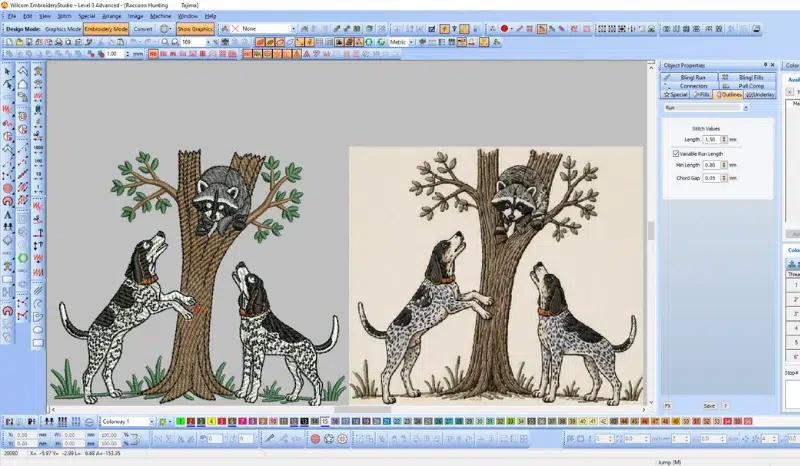
Open the artwork in embroidery digitizing software and set the real stitch size. This step matters because stitch types change when the logo gets smaller or larger.
However, do not scale blindly. Small letters may need wider satin columns or fewer details. Large fills may need better underlay and stitch direction.
Choose Stitch Types
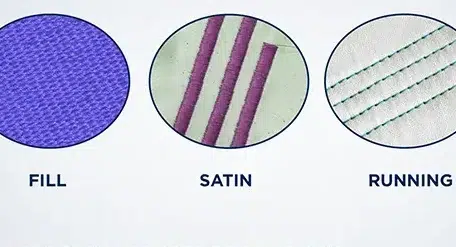
Build each part of the logo with the right stitch style. Use satin stitches for clean text, borders, and narrow shapes. Add fill stitches for wide areas. Use running stitches for fine lines and small details.
Also, avoid using the same stitch type everywhere. Each logo area needs a stitch choice that fits its size and purpose.
Plan the Stitch Path
Create a smart sewing order. Start with base areas, then move to details, outlines, and top layers. This helps the design stay aligned.
Meanwhile, keep jumps and trims under control. A cleaner path can reduce thread breaks, loose threads, and wasted machine time.
Add Underlay, Density, and Pull Compensation
Add underlay stitches to support the top stitches. Choose edge run, center run, zigzag, or fill underlay based on the shape and fabric.
Then, adjust stitch density so the design covers well without getting too tight. Add pull compensation where fabric may pull the stitches inward during sewing.
Set Colors, Stops, and Trims
Assign the color order and add stops where needed. Trim settings help clean up spaces between separate letters or shapes.
Important setup details include:
- Start and end points
- Tie in and tie off stitches
- Color changes
- Jump stitch control
- Trim points
- Stitch direction
Export and Test the File
Finally, save the editable master file, then export the Barudan-ready file as DSB, U03, U01 or FDR, PRJ, or DST.
After that, run a test sew. Check puckering, thread breaks, small text, outlines, and color order before full production.
For cleaner stitch results and fewer setup issues, Absolute Digitizing can prepare your logo in the right Barudan-ready format for your machine and production needs.
Why Won’t My Barudan Embroidery Machine Read My File?
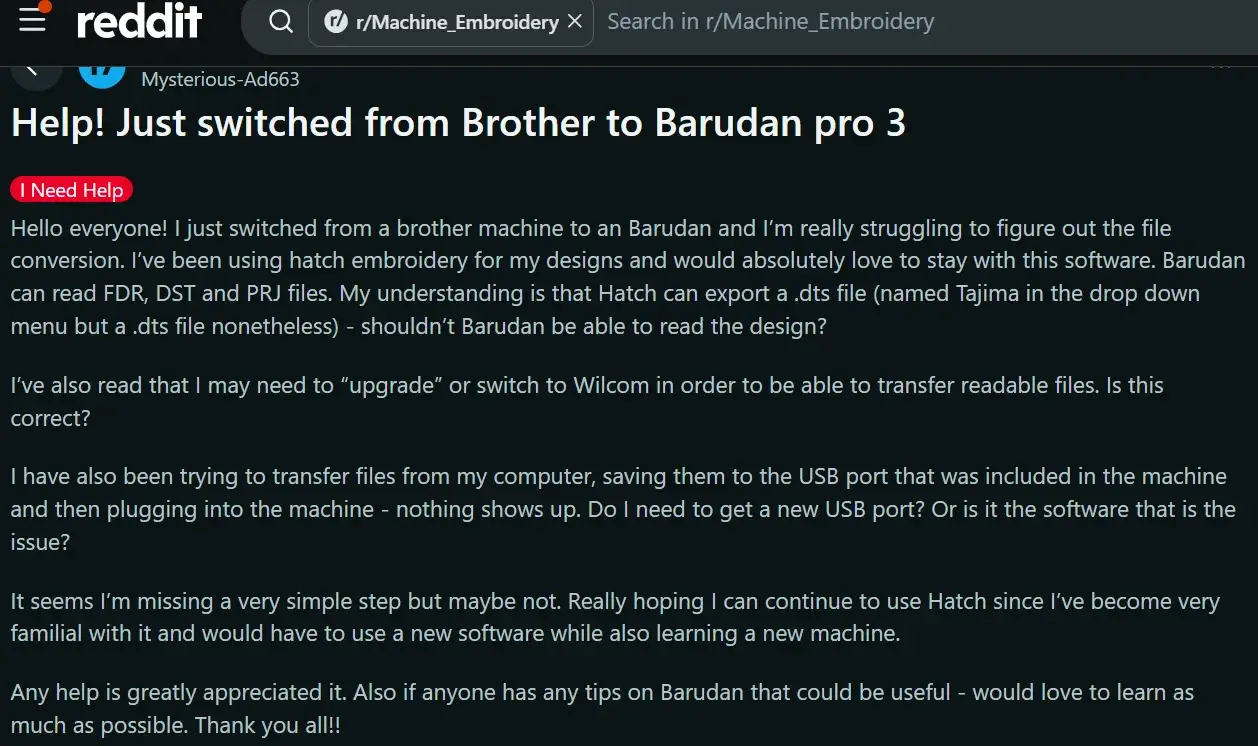
A Barudan machine may not read your file if the design is not exported correctly. Saving a logo file is not enough. The file must be a real stitch file in a format your embroidery machine can open.
However, the issue can also come from the USB setup, folder name, or design limits.
Common causes include:
- Wrong file type
- Saved file instead of exported stitch file
- Wrong USB or folder structure
- Design too large for hoop or memory
- Long file name or unsupported characters
- Color stop or start setup issues
Also, some Barudan workflows need specific folders, such as FDR, PRJ, or TFD, before the machine can show the design.
Do I Need Special Software to Make Barudan Files?
Yes, you need embroidery digitizing software that can export Barudan machine files, or you need a professional digitizer who can supply them. “Wilcom lists Barudan support for formats such as U03, U series, T03, and DSB.”
However, software alone does not guarantee a clean stitch-out. A weak design will still stitch poorly after export.
What Matters Most
Good results depend on:
- Stitch type
- Density
- Underlay
- Pull compensation
- Color order
- Trim control
Also, many users ask about software when switching to Barudan machines. The safer goal is not just opening the file but creating stitch data so the machine can sew smoothly.
When Should You Hire a Professional Digitizer for a Barudan File?
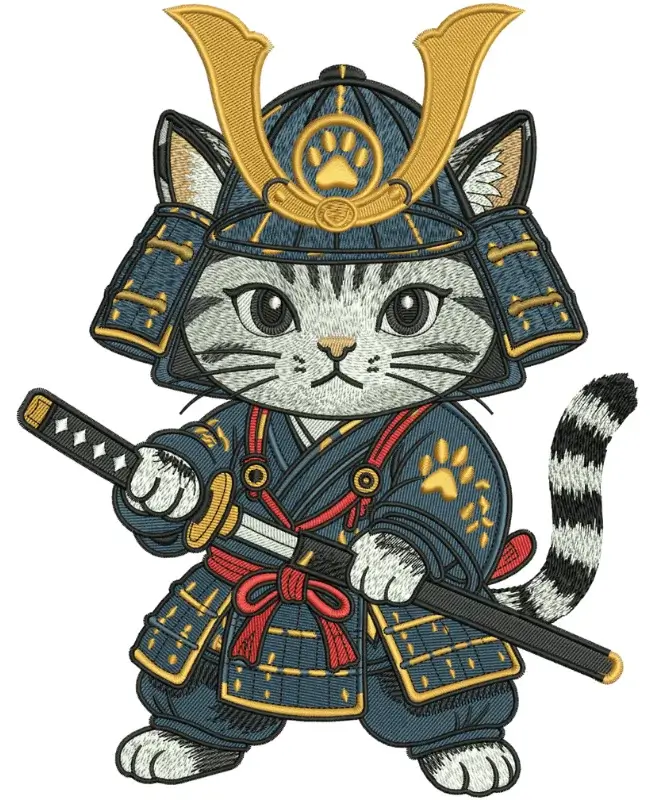
DIY digitizing can work for simple designs, but logo files need careful setup. Software also takes time to learn, and paid programs can add extra cost before you stitch one order.
However, professional digitizing helps when the logo has:
- Small letters
- Thin lines
- Gradients or tiny details
- Many color changes
- Cap or patch placement
- Stretchy, thick, or textured fabric
- Rush production needs
What a Professional Digitizer Checks
A digitizer does more than export a file. They adjust stitch type, density, underlay, pull compensation, trims, start and end points, and color order for Barudan machine use.
As a result, you can save time, thread, and garments. For production-ready results, Absolute Digitizing can prepare a clean Barudan-compatible file for your logo, fabric, size, and machine setup.
Final Checks Before Loading the File on a Barudan Machine
Before loading the design, check the file and machine setup. A correct stitch file can still fail if the folder, size, or hoop setup is wrong.
Review these points:
- Confirm the file format
- Place it in the right folder
- Check design size
- Check stitch count
- Confirm hoop fit
- Review color sequence
- Run a test stitch
- Keep the editable master file
Also, some Barudan workflows use FDR, PRJ, MEM, or TFD folders, so folder location can matter.
Final Thoughts
Turning a logo into a Barudan-ready file takes more than saving artwork in a new format. Your logo needs proper stitch planning, the right file type, clean paths, balanced density, underlay, trims, and color order. Also, the final file should match your machine, fabric, size, and production setup.
Before running the design, always check the format, folder location, hoop fit, and stitch quality. For smoother results and fewer mistakes, contact Absolute Digitizing for reliable embroidery digitizing and get a free quote today.
FAQs
Barudan machines may use DSB, U03, U01, FDR, PRJ, or DST, depending on the model and transfer setup. Wilcom lists Barudan support for DSB and U03, while Barudan’s Bluetooth Manager supports FDR, DST, and PRJ.
Yes, many Barudan workflows can read DST files. However, DST is not always the richest format because it does not store full thread color details the same way some native formats can. Always check the color sequence before stitching.
Not directly. A JPG or PNG is only an image, not stitch data. The logo must be digitized first. Then, the digitizer can export it as a Barudan-ready machine file for your model and production setup.
The file may be in the wrong format, saved instead of exported, placed in the wrong folder, or too large for the machine limits. Reddit users also report this problem when switching to Barudan or trying USB transfer for the first time.
DSB is more closely tied to Barudan workflows, while DST is widely used across commercial embroidery machines. The better choice depends on your machine, software, folder setup, and color needs. For production, ask for the format your Barudan setup reads best.