| Summary |
|---|
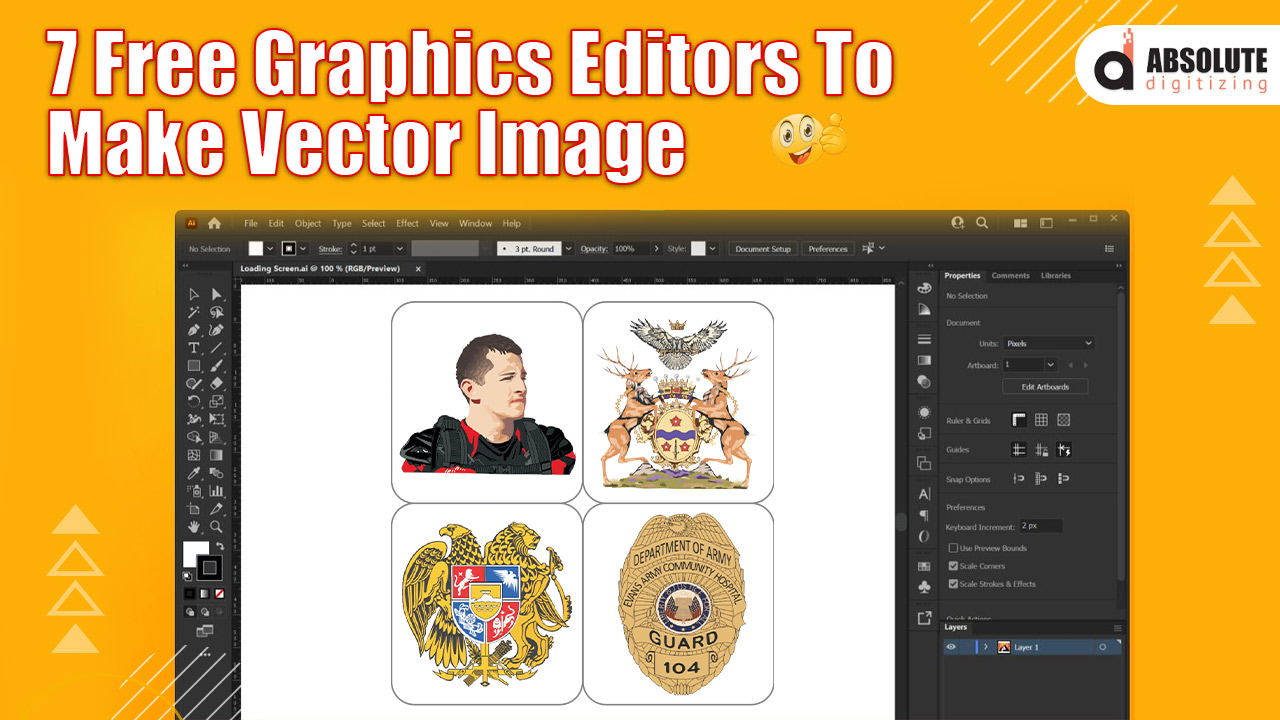
Free graphics editors help users create simple vector images, but clean production files often need expert support.
|
A clean vector image helps your design stay sharp on apparel, prints, patches, signs, and other products. Unlike a regular JPG or PNG, a vector file does not lose quality when you resize it.
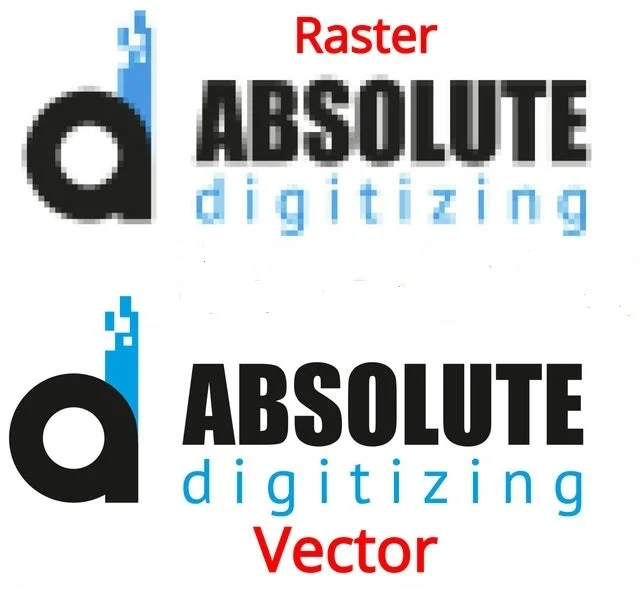
Raster images use pixels. They can show rich details, but they often look blurry when you enlarge them. However, vector images use lines, shapes, and curves. That means you can scale them up or down without ruining the edges.
Free graphics editors can help you create simple vector artwork. Still, some designs need expert cleanup, smooth paths, and the right file format for production.
If you want artwork that looks clean on every product, Absolute Digitizing offers the best vector conversion services to turn your rough image into a sharp, ready-to-use vector file.
What Is a Vector Image?
A vector image is a digital graphic made with paths, lines, curves, and shapes. It does not rely on tiny pixels like a JPG or PNG file.
Instead, it uses math-based paths to form the design. This helps the image stay clean when you resize it.
How Vector Images Work
A raster image uses pixels. When you enlarge it, the edges can look blurry or rough.
However, a vector image keeps sharp edges because the software redraws the shapes at any size.
Key Features of Vector Graphics
Vector files are useful because they are:
- Easy to resize
- Simple to edit
- Clean around the edges
- Often smaller for basic artwork
- Great for logos and icons
Common Vector File Types
Designers often use SVG, AI, and EPS files. SVG works well for web graphics. AI and EPS are common for printing, signs, apparel artwork, logos, and other design projects.
For a quick visual explanation, watch this short video to understand how vector graphics work before choosing a free editor.
How to Choose the Right Free Vector Graphics Editor
Choosing the right editor depends on your design goal, device, and skill level. A simple tool may work for icons, but detailed logo artwork needs stronger editing control.
Ease of Use
Start with an editor that feels simple. Check if it works on your device, such as Windows, Mac, Linux, or a web browser.
Also, look for clear menus, easy shape tools, and helpful tutorials. A strong user community can help you learn faster.
File Export Options
Make sure the editor can save the file types you need. SVG works well for web use. EPS, PDF, and AI-style files are common for print and production work.
Image Tracing Tools
Image tracing can turn a JPG or PNG into a vector shape. However, auto tracing may create rough edges or extra points.
Manual Editing Control
Good editors let you fix paths, curves, colors, and outlines by hand.
Quick Checklist
- Works on your device
- Easy for your skill level
- Supports needed file formats
- Offers drawing and tracing tools
- Includes learning guides
- Has active user support
What Are the Best Free Editors for Creating Vector Images?
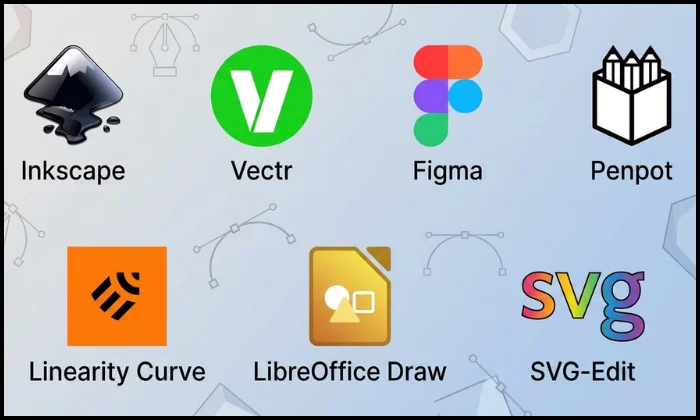
Free editors can help you create clean shapes, icons, logos, and simple artwork. Some tools work better for beginners, while others give more control to experienced users.
The right choice depends on your device, design goal, and file needs.
1. Inkscape
Inkscape is one of the strongest free editors for creating vector images. It works well for logos, icons, line art, signs, maps, and detailed illustrations.
It gives users strong control over paths, nodes, shapes, text, layers, and colors. This makes it useful for both beginners and skilled designers.
Main features:
- Path and node editing
- Shape and pen tools
- SVG file support
- Text and color tools
- Bitmap tracing
- Layer control
Supported systems:
- Windows
- Mac
- Linux
Inkscape has a learning curve, but it offers more control than most free tools. Beginners may need time to learn it, but experienced users can create cleaner and more detailed vector artwork.
2. Vectr
Vectr is a simple online editor for people who want quick vector designs. It works well for basic logos, icons, banners, and social media graphics.
Its clean layout makes it easy for beginners. You can create shapes, add text, change colors, and build simple designs without advanced skills.
Main features:
- Browser-based editing
- Basic shape tools
- Text tools
- Simple layout controls
- Image-to-vector options
- Easy sharing
Supported systems:
- Windows through browser
- Mac through browser
- Linux through browser
- Chromebook through browser
Vectr is best for simple projects. However, it may feel limited for detailed logo redraws, complex curves, or print-ready vector cleanup.
3. Figma
Figma works well for web graphics, app icons, layouts, and simple vector designs. It runs in a browser, so users can design from almost any device.
It includes vector drawing tools, shape tools, text tools, and easy team sharing. This makes it useful for business owners, web designers, and teams.
Main features:
- Browser-based design
- Pen and shape tools
- SVG export
- Team collaboration
- Design templates
- Easy file sharing
Supported systems:
- Windows through browser
- Mac through browser
- Linux through browser
- Chromebook through browser
Figma feels easier than many desktop editors. It works best for digital graphics, web design, and icons. However, it may not be the best option for complex print artwork or deep vector cleanup.
4. Penpot
Penpot is a free design tool built for teams, designers, and developers. It works in the browser and supports vector-based design work.
It’s a good choice for people who create web layouts, interface graphics, icons, and design systems. It also gives teams a shared workspace.
Main features:
- Browser-based editing
- Vector drawing tools
- Team collaboration
- Design and prototype tools
- Open design workflow
- Flexible project sharing
Supported systems:
- Windows through browser
- Mac through browser
- Linux through browser
- Chromebook through browser
Penpot works well for digital design projects. It may feel more advanced than beginner tools, but it gives teams better control and flexibility. For detailed logo conversion, manual cleanup may still be needed.
5. Linearity Curve
The Linearity Curve is a strong option for Apple users. It works well for vector art, illustrations, marketing graphics, icons, and clean design layouts.
It offers smooth drawing tools and a modern interface. Many users like it for creative work on tablets because it feels natural with a stylus.
Main features:
- Pen and shape tools
- Layer control
- Auto trace tools
- Vector illustration tools
- Touch-friendly design
- Offline editing on supported devices
Supported systems:
- Mac
- iPad
- iPhone
The linearity curve is beginner-friendly, but it also gives enough control for skilled designers. The main drawback is platform support. It is not the best fit for users on Windows or Linux.
6. LibreOffice Draw
LibreOffice Draw is a simple vector drawing tool inside a free office suite. It works best for diagrams, charts, layouts, forms, and basic graphics.
It is not a full logo design tool, but it can help users create clean shapes, lines, connectors, and simple drawings.
Main features:
- Shape tools
- Line and connector tools
- Diagram tools
- Page layout tools
- Basic vector editing
- PDF export
Supported systems:
- Windows
- Mac
- Linux
LibreOffice Draw is useful for beginners who need simple graphics. However, it is not ideal for detailed vector artwork, advanced tracing, or professional logo cleanup.
7. SVG-Edit
SVG-Edit is a browser-based tool for creating and editing SVG files. It is simple, fast, and useful for quick changes.
It works well when you need to edit colors, text, shapes, paths, or simple web graphics without installing software.
Main features:
- Browser-based SVG editing
- Shape tools
- Text tools
- Path editing
- Color and stroke controls
- Quick export options
Supported systems:
- Windows through browser
- Mac through browser
- Linux through browser
- Chromebook through browser
SVG-Edit is best for quick SVG edits. It is not the best choice for detailed artwork, complex logo redraws, or advanced production files.
A Quick Comparison
Each free editor has a different strength. Some tools work best for simple SVG edits, while others give more control for detailed vector artwork.
Use this quick guide to compare them before you choose one.
| Free Graphics Editor | Best For | Main Strength | Possible Limit |
|---|---|---|---|
| Inkscape | Logos, icons, and detailed artwork | Strong vector editing tools | It takes time to learn |
| Vectr | Beginners and quick designs | Simple online editing | Limited advanced control |
| Figma | Web graphics and UI designs | Easy sharing and teamwork | Better for digital design |
| Penpot | Team projects and layouts | Free browser-based workspace | More focused on UI work |
| Linearity Curve | Apple users and illustrators | Smooth drawing tools | Limited to Apple devices |
| LibreOffice Draw | Diagrams and basic graphics | Easy layout and shape tools | Not ideal for complex logos |
| SVG-Edit | Fast SVG changes | Quick browser editing | Basic design features |
For simple designs, beginners can start with Vectr or SVG-Edit. However, detailed logos and print artwork need stronger tools like Inkscape or expert vector cleanup.
Free editors can help you start, practice, and make simple vector images. Still, professional artwork often needs cleaner paths, better curves, accurate colors, and the right export settings.
Can Free Graphics Editors Replace Professional Vector Conversion?

Free graphics editors can help with simple vector work. They are useful when you need basic icons, clean shapes, simple text, or small web graphics.
However, they may not replace professional vector conversion for detailed or business-ready artwork.
When Free Tools Work Well
Free tools can work for simple projects with clear lines and basic shapes.
They are a good choice for:
- Basic SVG edits
- Simple icons
- Practice designs
- Web graphics
- Hobby artwork
- Small personal projects
When You Need Professional Help
Complex designs need more care. Auto tracing can create rough edges, extra points, uneven curves, and wrong shapes.
Professional vector conversion works better for:
- Logos
- Apparel artwork
- Signs and decals
- Print files
- Embroidery artwork
- Product packaging
- Detailed illustrations
A professional can clean the paths, match the design, and prepare the right file format.
So, use free tools for simple edits. Choose expert vector conversion when your artwork must look sharp, accurate, and ready for production.
Conclusion
Free graphics editors can help you create vector images for logos, web graphics, icons, diagrams, and simple artwork. Tools like Inkscape, Vectr, Figma, Penpot, Linearity Curve, LibreOffice Draw, and SVG-Edit each serve a different need.
However, free tools may not always create clean, production-ready files. Detailed designs often need smooth paths, sharp edges, correct sizing, and the right format for print or digital use.
If you want clean artwork without the stress, contact Absolute Digitizing for professional vector conversion services. Get a free quote and turn your design into a sharp, ready-to-use vector file.
FAQ
Inkscape is the best overall free option for detailed vector work. It gives strong control over paths, shapes, text, and curves.
Yes, some free editors offer image tracing tools. However, auto tracing may create rough edges, extra points, or uneven lines that need manual cleanup.
Vectr is a good choice for beginners. It has a simple layout, easy tools, and browser-based editing for quick vector designs.
Free editors can work for simple logos. However, detailed logos need clean paths, sharp edges, correct colors, and the right file format for professional use.
SVG works well for web graphics. EPS, AI, and PDF are common choices for printing, signs, apparel designs, and professional artwork.
Free tools can help with simple edits and basic designs. For business logos, print files, decals, and apparel artwork, professional vector conversion gives cleaner and more accurate results.
Use a professional service when your artwork looks blurry, has rough edges, needs exact shape matching, or must be ready for printing, embroidery, signs, or product use.