| Summary |
|---|
StitchPencil brings hands-on embroidery digitizing to the iPad, but clean results still require skill.
|
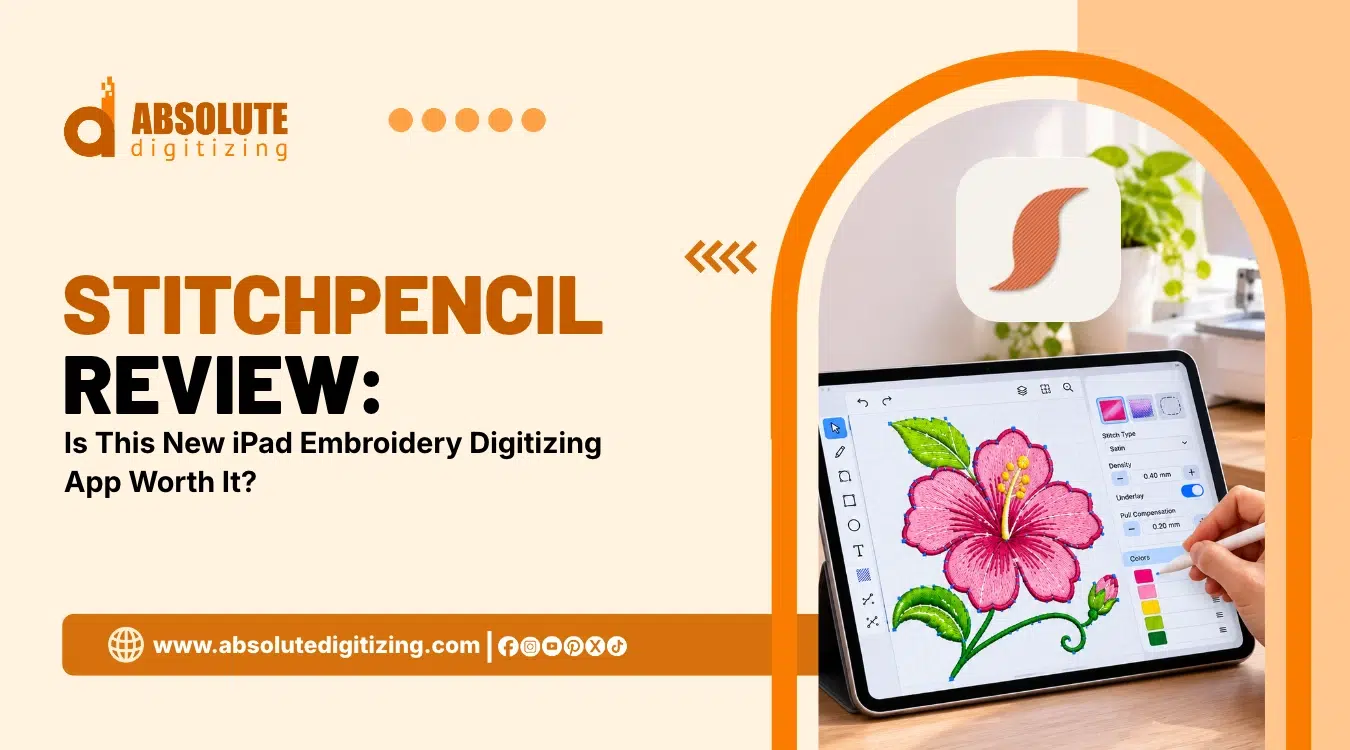
More embroidery fans want to create designs on an iPad without using a desktop computer. StitchPencil brings this idea to life by turning Apple Pencil drawings into embroidery files.
However, drawing a design is only the first step. Will the stitches sew smoothly on real fabric? Can the app handle small details, clean edges, and lettering?
In this review, we explore StitchPencil’s tools, pricing, machine compatibility, and stitch quality. We also discuss whether it offers a practical alternative to desktop software for embroidery users.
For designs that need extra care, explore our reliable custom embroidery digitizing solutions and turn your artwork into a clean, machine-ready file.
- Quick Answer: Is StitchPencil Worth Trying?
- What Is StitchPencil?
- How StitchPencil Works on an iPad
- Key Digitizing Features and Stitch Tools
- Is StitchPencil Really Free?
- Supported Embroidery File Formats and Machine Transfer
- How Good Is StitchPencil's Stitch Quality?
- Is StitchPencil Suitable for Beginners?
- Pros and Cons of StitchPencil App
Quick Answer: Is StitchPencil Worth Trying?
Yes, StitchPencil is worth trying if you want to create embroidery designs on an iPad. It offers real stitch controls, including satin and fill stitches, and supports popular machine file formats. This makes it more than a basic drawing app.
However, exporting machine files requires a $64.99 one-time payment. Since the app is new and has limited independent reviews, try its free drawing and editing tools before paying. Remember, a good stitch preview does not always mean clean embroidery.
Who Should Try It?
- Creative hobbyists who enjoy drawing.
- Home embroiderers making personal projects.
- Beginners interested in learning digitizing.
What Is StitchPencil?
StitchPencil is an embroidery digitizing app for iPad released on October 26, 2026. It lets users draw designs with an Apple Pencil and turn those drawings into stitches for an embroidery machine.
More Than a Drawing App
Unlike a regular sketching app, StitchPencil builds editable embroidery objects. You can draw lines, satin columns, and filled shapes, then adjust their stitch settings without starting over. The app recalculates the stitches when you change an object.
For example, a drawn flower can become a design with running outlines and filled petals. However, users still need to choose suitable settings for their fabric and machine.
What Do You Need?
- An iPad that supports the app.
- A compatible Apple Pencil.
Apple’s App Store lists iPadOS 18 or later. However, StitchPencil’s website says iPadOS 26 or later. Check your device’s compatibility before installing. An M-series iPad may handle larger designs faster, but it is not required.
How StitchPencil Works on an iPad
StitchPencil turns Apple Pencil drawings into editable embroidery objects. Here is how to prepare a design for your machine.
Five Steps From Drawing to Stitches
- Start a project: Open a new design and choose your hoop size and fabric settings.
- Add artwork: Draw on the screen or import a picture as a guide for tracing.
- Choose stitches: Apply running stitches to lines, satin stitches to borders, and fill stitches to larger shapes. Adjust density, underlay, and stitch angles.
- Check the preview: Watch the stitch sequence and color changes. Review warnings about long stitches, narrow satin areas, or objects outside the hoop.
- Export your file: After purchasing the export unlock, select a machine format such as PES, DST, or JEF, then save the design.
Can You Make Changes Later?
Yes. Drawing objects and their settings stay editable. You can adjust colors, stitch density, and stitch order before exporting.
Also, the experimental Stitch Draft feature can turn simple, flat artwork into a starting design. However, it still needs manual checks and changes before you sew it on fabric.
Key Digitizing Features and Stitch Tools
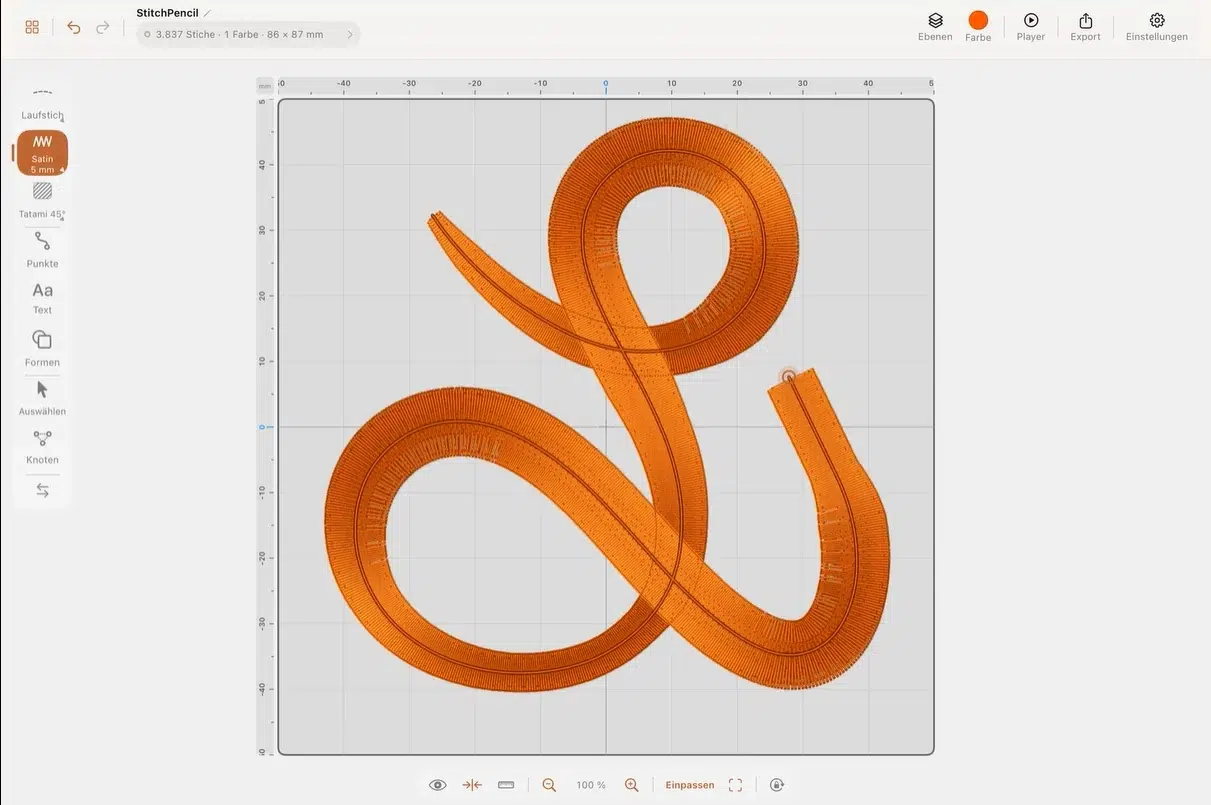
StitchPencil gives you more than drawing tools. It lets you choose how each part of a design will sew, then adjust the stitches before export.
1. Running, Satin, and Fill Stitches
Each stitch type has a different job:
- Running stitches create thin outlines and detail.
- Triple stitches sew a line three times for a stronger look.
- Bean stitches repeat short sections for bold lines.
- Satin stitches cover letters and narrow borders.
- Tatami fills cover larger areas with rows of stitches.
You can adjust stitch length, fill angle, density, underlay, and pull compensation. Underlay supports the top stitches, while pull compensation accounts for fabric movement. With a pressure sensitive Apple Pencil, pressing harder makes a satin column wider.
2. Lettering and Creative Embroidery Effects
StitchPencil includes embroidery fonts and lets you place words along curved paths. Font Studio lets you draw and save your own lettering styles.
For decoration, sashiko patterns suit quilting and simple outlines. Cross stitch works for grid-based artwork. Appliqué adds fabric pieces with placement and tack down steps, while 3D puff embroidery builds raised lettering over foam.
However, these effects still need the right fabric, stabilizer, and stitch settings.
3. Stitch Preview and Design Editing
You can edit shapes and nodes, change stitch types, and reorganize layers. The app keeps color changes and sewing order visible, so you can spot unwanted jumps or extra thread changes.
Its stitch player shows how each color block will sew. Design checks also warn about problems such as overly long stitches, narrow satin columns, or objects outside the hoop.
Still, a screen preview cannot prove the design will sew cleanly. Test a sample on your actual fabric before stitching a finished item.
Is StitchPencil Really Free?
StitchPencil is free to download. You can draw, import artwork, edit stitch objects, and preview designs without paying. These free tools have no time limit.
Free Tools vs Paid Export
| Free Access | Paid Export Unlock |
|---|---|
| Draw designs | Export machine files |
| Import artwork | Transfer finished files |
| Edit stitch objects | Use exported designs for stitching |
| Preview designs | Save machine-ready outputs |
However, sending designs to a machine requires the paid export unlock. You need to pay a one-time fee of $64.99 to unlock machine file exports. There are no monthly subscriptions or recurring charges. The price may vary depending on your region.
Is the Upgrade Worth It?
For regular hobby projects, a one-time payment may be worthwhile, especially if you want to create many original patterns.
Meanwhile, if you only need one logo or an occasional design, the price may be harder to justify. Test the free tools before buying, and confirm that the available export format works with your machine.
Supported Embroidery File Formats and Machine Transfer
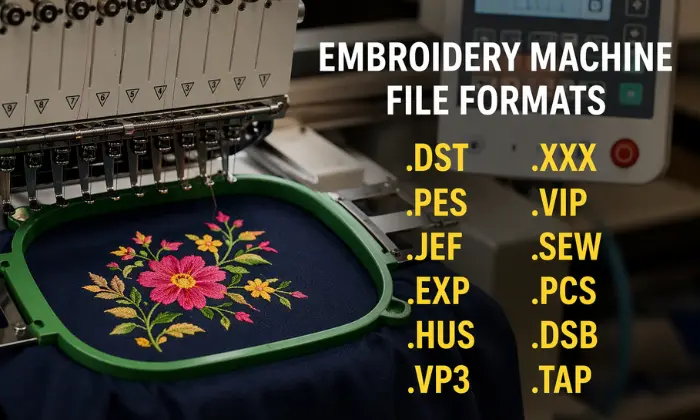
StitchPencil supports eight embroidery file formats, allowing users to prepare designs for different home and commercial embroidery machines.
Which File Formats Does It Support?
- PES for Brother machines.
- JEF for Janome machines.
- VP3 and HUS for compatible Husqvarna Viking machines.
- DST, EXP, XXX, and TAP for other supported machines.
However, a supported format does not guarantee compatibility. Your machine must also accept the design size and hoop settings.
How Can You Transfer Designs?
StitchPencil offers two main transfer methods:
- USB Drive: Save the exported file to a compatible USB drive using the iPad Files app and a suitable adapter if needed.
- Bluetooth Stick: Send designs wirelessly to the optional StitchPencil stick connected to your machine’s USB port.
The Bluetooth method requires extra hardware, initial pairing, and the paid export unlock.
How Good Is StitchPencil’s Stitch Quality?
StitchPencil offers stitch controls, but good screen settings do not guarantee clean embroidery. The real test is how a design sews.
Underlay, Density, and Pull Compensation
Underlay creates a base for top stitches. Density controls how closely stitches sit together. Too much density may cause puckering, while too little can leave gaps.
Pull compensation adds width where thread and fabric pull inward. This matters for satin letters and neat borders. StitchPencil lets users adjust these settings, but fabric, stabilizer, and thread choice still affect the outcome.
What Should Users Test Before Stitching?
Start with three simple samples:
- A small satin letter to check narrow lines and corners.
- A basic logo to check borders and alignment.
- A filled shape to check coverage and puckering.
Then compare each preview with the sewn sample. Look for gaps and divots, thread breaks, uneven outlines, and unclear small text.
Also, test on the same fabric and stabilizer you plan to use. A preview cannot replace a real stitch-out.
Is StitchPencil Suitable for Beginners?
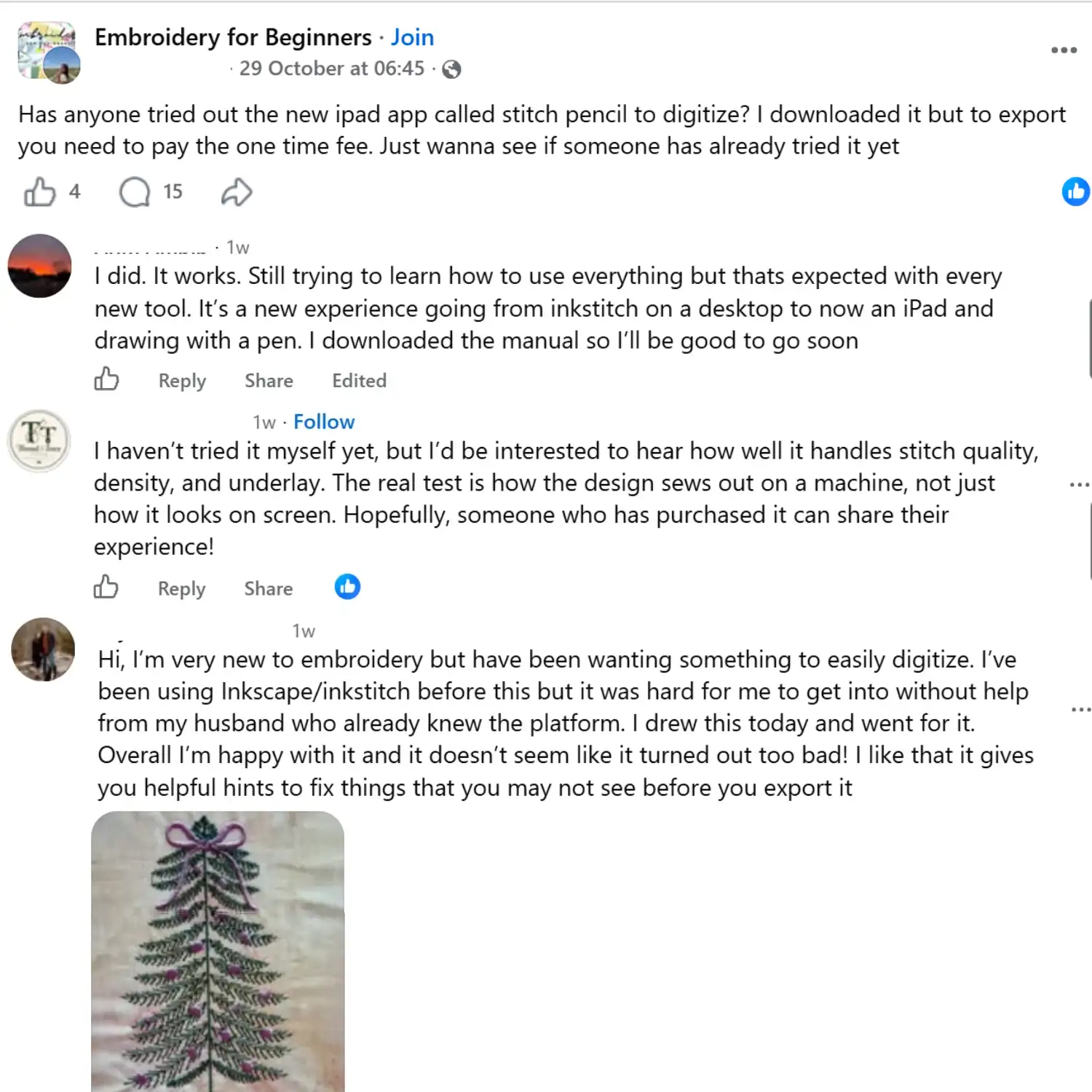
In a Facebook embroidery group, early StitchPencil users shared mixed experiences. Some liked the iPad drawing workflow and design warnings, while others were still learning the tools. One beginner shared a finished stitch-out and expressed satisfaction with the result. However, these early experiences do not yet prove consistent stitch quality across different fabrics and designs.
StitchPencil gives beginners a simple way to explore embroidery digitizing. Drawing with an Apple Pencil may feel familiar, especially if you already sketch on an iPad.
However, turning drawings into clean stitches takes practice. You must learn how density, underlay, fabric, and stabilizer affect the final result.
Who Should Try It?
The app may suit:
- Hobbyists creating personal designs.
- Digital artists exploring embroidery.
- Students learning stitch settings.
- Home-machine owners making small projects.
Meanwhile, desktop software like Wilcom offers a wider workspace for complex production files and detailed editing. StitchPencil focuses more on hands-on drawing and portability.
Pros and Cons of StitchPencil App
StitchPencil offers a flexible way to create embroidery designs without a desktop computer. However, its features come with some limitations. Here are the main advantages and drawbacks to consider.
Main Advantages and Drawbacks
| Pros | Cons |
|---|---|
| Free drawing and editing tools | Paid machine file exports |
| Apple Pencil drawing workflow | Works only on iPad |
| Adjustable stitch controls | Requires digitizing knowledge |
| Multiple machine file formats | Limited independent user reviews |
| One-time purchase | Bluetooth transfer needs extra hardware |
What Is the Biggest Tradeoff?
StitchPencil makes drawing and editing convenient, but creating quality embroidery still requires practice. You must understand stitch density, underlay, and fabric behavior.
Also, a design that looks perfect on screen may develop gaps or puckering during stitching. Always test your files on real fabric before using them for finished projects.
The Role of Professional Embroidery Digitizing

StitchPencil offers useful controls for underlay, density, and stitch direction. However, software alone cannot guarantee clean embroidery. Good results require knowledge of how thread, fabric, and machine settings work together.
When Does Expert Digitizing Matter?
Experienced embroidery digitizers handle projects that need extra care, including:
- Detailed company logos with small lettering.
- Structured caps and stretchy fabrics.
- Bulk orders that need consistent stitch quality.
- Complex designs requiring careful stitch paths, density, and fabric adjustments.
Why Does Experience Make a Difference?
Professional digitizers plan stitch order, reduce unnecessary jumps, and adjust designs for different materials. They also use test stitching to check the results before production.
While StitchPencil provides advanced tools, experience makes the difference in getting reliable results.
For your next embroidery project, submit your artwork to our team and request a custom, machine-ready file.
Final Verdict: Is This iPad App Worth Trying?
StitchPencil is a promising choice for embroidery fans who want to create designs directly on an iPad. Its Apple Pencil support, adjustable stitch settings, and multiple file formats make it worth exploring.
The free drawing and editing tools let you try the workflow before spending money. However, the $64.99 export unlock makes more sense once you feel comfortable using the app.
For commercial embroidery, focus on real stitch quality, not just software features. Test your designs on fabric and check for consistent results.
Overall, StitchPencil is worth trying for creative projects and learning digitizing.
For business logos and custom embroidery projects, contact Absolute Digitizing and get a free quote for a stitch-ready design.
Frequently Asked Questions
StitchPencil lets you import artwork and create embroidery objects. Its experimental Stitch Draft feature can generate a starting design from simple artwork, but you still need to adjust the stitches.
Yes. StitchPencil exports PES files for compatible Brother machines. Always check your machine’s supported format, hoop size, and design limits.
StitchPencil offers free drawing and editing tools. Exporting embroidery files requires a $64.99 one-time purchase in the US, with no monthly subscription.
Yes. You can save exported files to a compatible USB drive through your iPad or use the optional StitchPencil Bluetooth stick with supported machines.
StitchPencil includes advanced stitch controls for logo creation. However, complex logos, small lettering, and bulk production require careful adjustments and test stitching for consistent results.