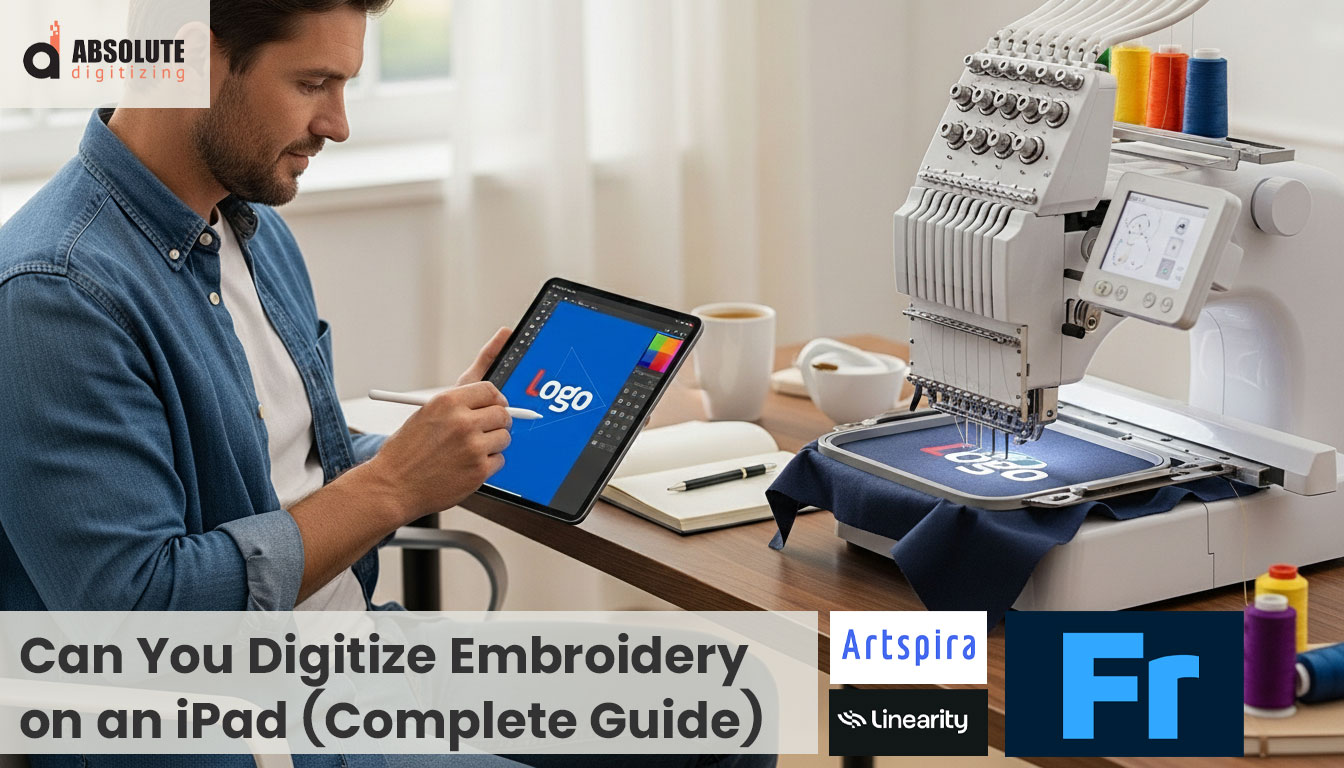
You will learn how an iPad helps you sketch, trace, edit SVG files, and organize embroidery designs. You will also see why desktop software or a trusted digitizing service works better for clean, machine-ready files.
- Best iPad uses
- Common limits
- Smarter workflow
Trying to digitize embroidery on an iPad sounds like a smart idea at first. It is portable, easy to use, and great for sketching designs anywhere. But here is the truth: an iPad can help you create and edit embroidery artwork, yet it usually cannot replace full professional embroidery digitizing software when your machine needs accurate stitch instructions.
That is where many beginners get confused. A design may look perfect on the screen, but an embroidery machine does not read it like a picture. It needs a proper stitch file with settings for stitch type, direction, density, pull compensation, and pathing. Without that, even a beautiful design can sew badly.
The iPad is still useful in the process. You can sketch ideas, trace artwork, clean up shapes, and organize files before digitizing. But if you want clean, machine-ready embroidery files, you may still need desktop software or a professional digitizing service. Knowing this early can save you time, wasted effort, and costly mistakes.
- Is It Possible to Digitize Embroidery Designs Using an iPad?
- What Are the Best Free Apps for Embroidery on an iPad?
- What are The Challenges of Digitizing Embroidery With an iPad?
- What Makes Professional Embroidery Digitizing Software Superior to iPad Apps?
- Are iPads a Good Choice for Embroidery Digitizers?
- Can You Run Embrilliance on an iPad?
- When Should You Consider Outsourcing Your Embroidery Digitizing Work?
- Does an iPad Work With SVG Files for Embroidery?
- Can You Save Embroidery Patterns Directly to Your iPad?
Is It Possible to Digitize Embroidery Designs Using an iPad?
Yes, but only to a point.
You can use an iPad for parts of the embroidery process. It works well for drawing ideas, cleaning up logos, tracing shapes, and getting artwork ready. If you use an Apple Pencil, the process can feel smooth and natural.
But full embroidery digitizing is a different job. Real digitizing means telling the machine how to stitch the design.
That includes:
- Stitch type
- Stitch direction
- Stitch density
- Stitch path
Most iPad apps do not give you that level of control.
So if you are hoping to create a clean, machine-ready embroidery file from start to finish on an iPad, the answer is usually no. Not by itself.
The best way to think about it is this. An iPad is a helpful design tool. It is not a full replacement for professional embroidery digitizing software.
What Are the Best Free Apps for Embroidery on an iPad?
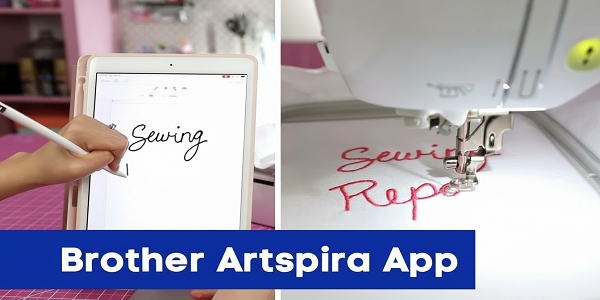
Brother Artspira App for Digitize Embroidery on an iPad
Brother Artspira
Brother Artspira is the best fit for embroidery beginners. It gives you ready-made design tools, text features, and easy file transfer for compatible Brother machines. But it works best if you already use Brother products.
Adobe Fresco
Adobe Fresco is great for sketching and tracing design ideas. It feels smooth and easy with Apple Pencil. Still, it helps with artwork only, not full embroidery digitizing.
Linearity Curve
Linearity Curve is a smart choice for clean vector art and SVG files. It works especially well for logos. But you still need desktop software or a digitizing service to turn that art into a machine-ready embroidery file.
Here’s a quick comparison:
| App | Best For | Main Features | User Experience | Pros | Cons |
|---|---|---|---|---|---|
| Brother Artspira | Beginners and Brother machine users | Design library, text tools, templates, wireless transfer for compatible Brother machines | Simple and beginner-friendly. Easy to explore on iPad. | Embroidery-focused, quick setup, handy for small edits and simple projects | Works best in the Brother ecosystem. Limited control for true stitch-level digitizing |
| Adobe Fresco | Sketching and tracing artwork | Natural drawing brushes, Apple Pencil support, layering, easy tracing and cleanup | Smooth, fun, and very easy for creative work | Great for hand-drawn ideas, artwork cleanup, and logo prep | Not a true embroidery digitizing app. Does not create full machine-ready stitch files |
| Linearity Curve | Vector art and SVG prep | Shape tools, vector editing, logo cleanup, SVG export | Clean and precise. Good for simple logo work. | Strong for clean lines, polished artwork, and scalable graphics | You still need desktop software or a digitizing service to turn art into an embroidery file |
What are The Challenges of Digitizing Embroidery With an iPad?
Using an iPad for embroidery digitizing can be tricky. Most professional embroidery software is designed for desktops, not iPads. That limits the tools you can use. Fine details are harder to control on a touchscreen, especially small logos or text.
File compatibility is another common problem. iPad apps often export artwork or SVGs, but your embroidery machine needs a stitch file like PES or DST. You still need desktop software or a digitizing service to convert it.
Other challenges include:
- Limited control over stitch type, direction, and density
- Difficulty testing designs on real fabric
- Complex designs can take longer and be frustrating to finish
An iPad works great for sketching and prepping artwork. But for clean, machine-ready designs, working with a professional digitizing service can save time, reduce errors, and give better results.
What Makes Professional Embroidery Digitizing Software Superior to iPad Apps?
Professional embroidery software goes far beyond basic iPad apps. It gives you full control over stitch type, direction, density, and path. This precision helps designs look clean and stitch correctly on fabric.
These programs follow industry standards, so your files work with different machines and fabrics.
They also offer advanced editing tools, such as:
- Resizing without losing quality
- Fixing push and pull issues
- Removing unnecessary jumps and trims
Other benefits include:
- 3D previews
- Repeat order management
- Consistent results for logos or text
While iPads are great for sketching and prep, professional software ensures that designs stay machine-ready, efficient, and polished. Using it or a professional digitizing service can save time and reduce costly errors.
Are iPads a Good Choice for Embroidery Digitizers?
iPads can be a great tool for graphic designers and embroidery enthusiasts, but they have limits. They shine for sketching, tracing, and creating vector artwork with Apple Pencil. The touchscreen makes drawing feel natural and fast.
However, iPads cannot match desktops or laptops for full embroidery digitizing. They have smaller screens, limited software options, and less file management flexibility.
Here’s what an iPad works well for:
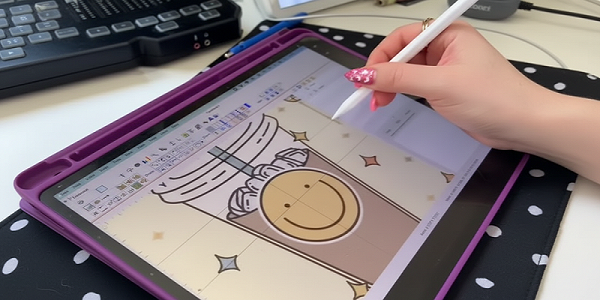
Digitize Embroidery on an iPad
- Sketching and brainstorming designs
- Tracing logos or artwork
- Cleaning up vector files for later digitizing
- Organizing files and previews
iPads are excellent for design prep, but for precise stitch-level control and machine-ready embroidery files, a desktop or professional digitizing service is still the best choice.
Can You Run Embrilliance on an iPad?
No, you cannot run Embrilliance directly on an iPad. Embrilliance is made for desktop computers with macOS or Windows. The software needs full operating systems to work, and iPadOS does not support all the features Embrilliance uses.
That can be disappointing if you hoped to do everything on an iPad. But you can still use your iPad in other parts of the workflow. You can sketch ideas, trace shapes, and clean up artwork on the iPad. Then you can move those files to a desktop computer that runs Embrilliance.
Here are a few workarounds for iPad users:
- Save your artwork as a vector file on the iPad
- Use cloud storage to open the files on a desktop later
- Use a professional digitizing service to take your iPad artwork and turn it into a machine-ready embroidery file
This way, you get the best of both convenience and powerful digitizing tools.
When Should You Consider Outsourcing Your Embroidery Digitizing Work?
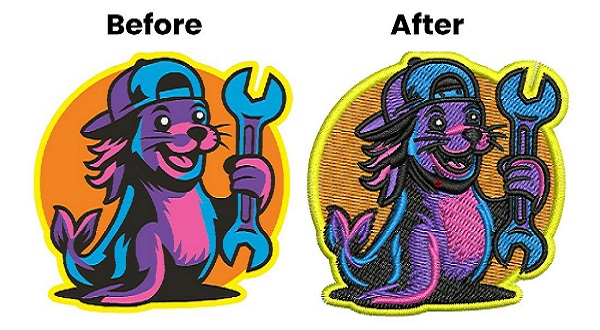
Embroidery Digitizing Before After
Outsourcing makes sense when you want to save time and ensure high-quality results. If you run a small business and need consistent, professional embroidery for logos or uniforms, a digitizing service can handle it more quickly than you can.
You should also consider outsourcing when designs are complex. Small text logo , detailed logos, or 3D puff embroidery can be tricky to digitize correctly. Mistakes can waste thread, fabric, and time.
Other factors to consider:
- Tight deadlines that don’t give you time to learn software
- High volume orders where consistency matters
- Limited access to professional software or skilled staff
- Cost of training and trial-and-error mistakes
Outsourcing lets you focus on running your business. A professional service delivers machine-ready files that stitch cleanly every time, reducing frustration for beginners and busy business owners alike.
Does an iPad Work With SVG Files for Embroidery?
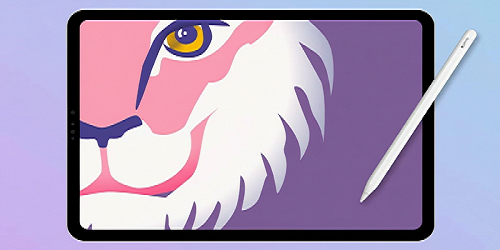
Editing SVG File on iPad
Yes, iPads can work with SVG files, but there are limits. Apps like Linearity Curve or Adobe Illustrator on iPad let you open, edit, and create SVGs. You can trace designs, clean up logos, and adjust shapes. This makes the iPad a useful tool for preparing artwork.
SVG files, however, are not embroidery files. An embroidery machine cannot read them directly. You need to convert SVGs into machine-ready formats like PES, DST, or EXP using desktop software.
The iPad is best for sketching, tracing, and organizing artwork. You can edit and export SVG files, then move them to a computer for the next step. This workflow leverages the iPad’s portability while keeping designs ready for embroidery digitizing.
Can You Save Embroidery Patterns Directly to Your iPad?
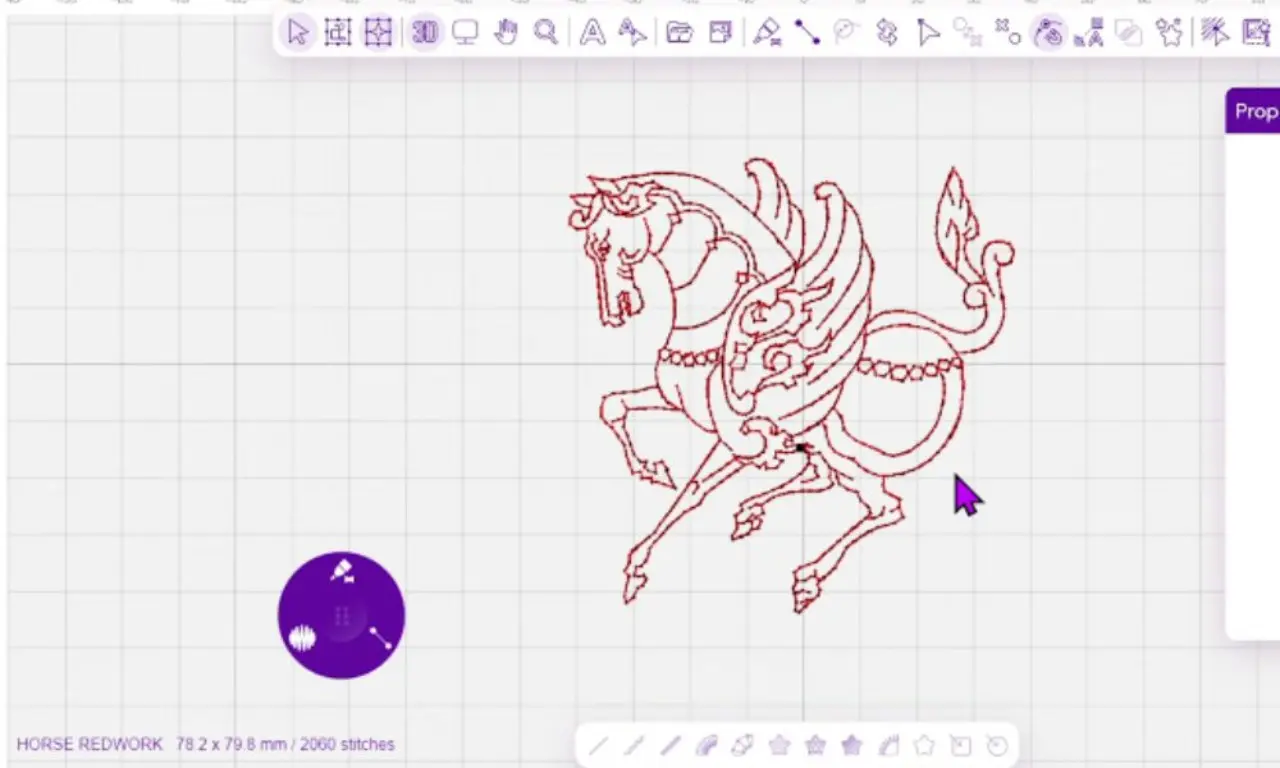
saving embroidery patterns on iPad
Yes, you can save embroidery designs and patterns directly to an iPad.
This makes it easy to access your files wherever you are. To start, make sure your files are in a compatible format. SVGs, PDFs, and some embroidery machine formats can be stored on your iPad. You can use the Files app or cloud storage services like iCloud Drive, Google Drive, Dropbox, or OneDrive to keep everything organized.
Organizing and Storing Patterns
Creating folders on your iPad helps keep designs easy to find. You can organize files by project, client, or type of embroidery. Label your files clearly so you can locate them quickly. Using cloud storage ensures your designs are backed up and accessible from other devices if needed.
Transferring to embroidery machines
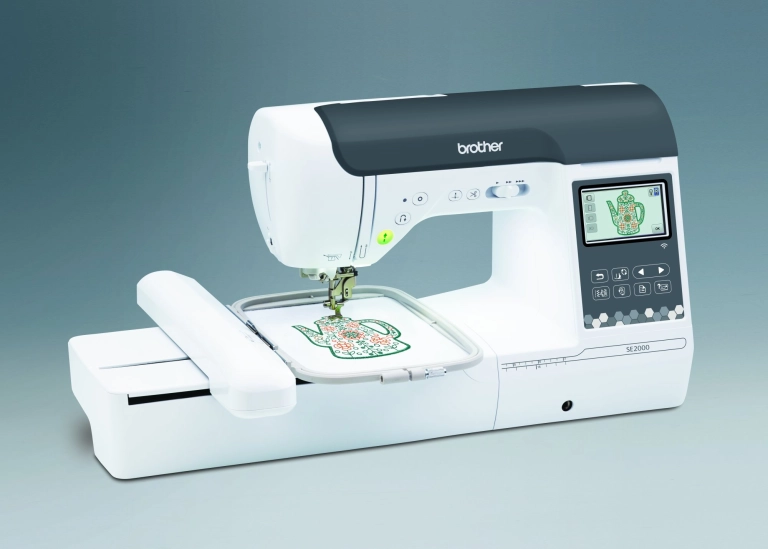
Home Embroidery Machine
Not all embroidery machines can read files directly from an iPad. Some machines require a USB drive, memory card, or connection to desktop software.
To transfer designs, you can export the file from your iPad and then upload it to your embroidery machine through its software or app. Always check your machine’s requirements to make sure the file works properly.
Using your iPad to save and organize patterns helps you stay efficient and ready for any project. You can preview designs, keep your files tidy, and prepare artwork for later stitching with ease.
Conclusion
An iPad is helpful for embroidery design, but it cannot fully replace professional digitizing software. It works well for sketching ideas, tracing artwork, editing SVG files, and organizing patterns. But full embroidery digitizing needs more control over stitches, file formats, and machine settings than most iPad apps provide.
That’s why the best choice depends on your needs. If you are a hobbyist, an iPad may be enough for simple design prep. If you run a business or need clean, machine-ready files, desktop software, or a trusted digitizing service, you’ll get better results.
Mobile tools will continue to improve, and the future of digital embroidery on tablets looks promising. But right now, choosing the right workflow can save you time, stress, and costly mistakes.
If you need reliable, high-quality embroidery files, contact Absolute Digitizing and let the experts help bring your designs to life. Contact Now to Get a Free Quote!
FAQs
Can I use an iPad with a Brother embroidery machine?
Yes, you can use an iPad with some Brother embroidery machines. Brother’s Artspira app lets you create, edit, and send designs to compatible wireless Brother machines.
What file format do embroidery machines use?
Embroidery machines use stitch file formats such as PES and DST. Some models also support files like PHC, PHX, and PEN, depending on the machine brand and model.
Is SVG the same as PES or DST?
No, they are not the same. SVG is a vector art file used for artwork and design. PES and DST are embroidery stitch files that tell the machine how to sew the design.
Can I run embroidery software on iPad without a computer?
You can use simple embroidery-related apps on an iPad, but full embroidery software usually needs a computer. For example, Embrilliance runs on Mac and Windows, not on iPad.