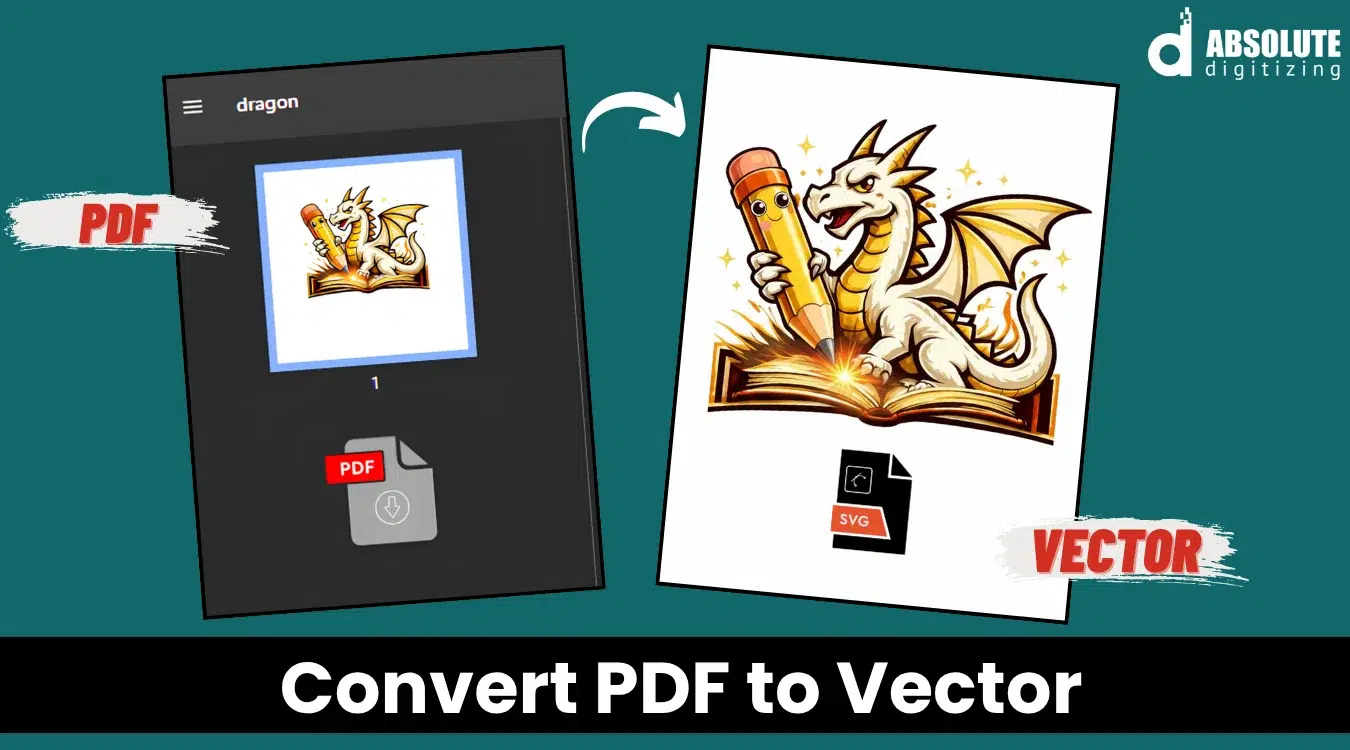
PDF files can hold either vector artwork or flat images. Vector files use paths and shapes, so they stay sharp, editable, and ready for production.
|
A PDF file can look clean on your screen, but it may not work well for printing, cutting, or resizing. Your logo or artwork can turn blurry when you enlarge it. This often means the file is not a true vector design.
Vector art uses clean lines and shapes instead of tiny pixels. So, it stays sharp at any size. That makes it useful for signs, shirts, labels, stickers, engraving, and business branding.
However, not every PDF has vector art inside it. Some PDFs only hold flat images, like JPG or PNG files. That is why you need to check the file before using it for production.
In this guide, you will learn the difference between PDF and vector files. You will also learn how to convert PDF to vector in simple steps.
Need clean, print-ready artwork? Absolute Digitizing offers reliable vector art services for logos, products, and custom designs.
What Is a Vector Image and Why Is It Important?
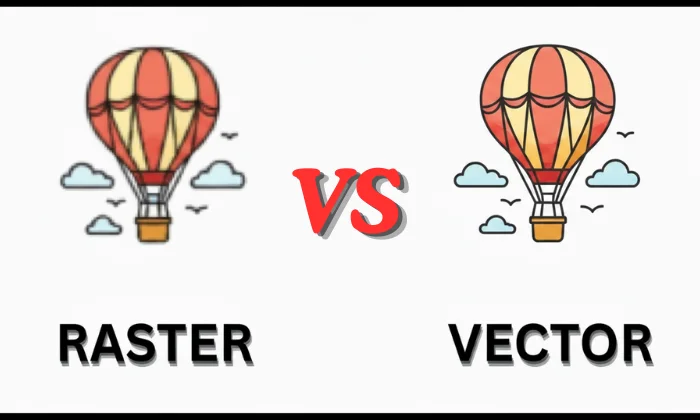
A vector image is an artwork made with points, lines, curves, and shapes. Design software uses math to build these paths. This helps the artwork stay clean when you resize it.
A raster image works in a different way. It uses tiny squares called pixels. JPG, PNG, and many scanned images are raster files. When you make them larger, they can look blurry or rough.
How vector files stay clear at any size
Vector images stay sharp because they do not depend on fixed pixels. The design software reads the lines, curves, and shapes, then redraws them when you resize the artwork.
This means you can use the same logo on a small label or a large sign. The edges stay smooth, clean, and easy to read.
Common vector file formats
Vector file types include:
- AI
- EPS
- SVG
- CDR
However, a PDF is not always a true vector file. It can also hold flat images inside it.
Real uses of vector images
- Logos and brand files
- T-shirt and cap printing
- Stickers and labels
- Signs and banners
- Laser cutting
- Vinyl cutting
- Engraving
Vector images matter because they keep your design sharp, editable, and ready for production. This helps your brand look clean and professional everywhere.
What Is the Difference Between a PDF and a Vector File?
A PDF is a document file. It can hold text, images, links, fonts, and artwork in one place. People use PDFs to share proofs, forms, catalogs, flyers, and print layouts.
A vector file is an artwork file. It stores editable paths, lines, curves, shapes, and colors. Designers use vector files when artwork needs clean edges and easy changes.
Can a PDF be a vector file?
Yes, a PDF can contain vector elements. For example, a logo saved from design software may stay editable inside a PDF.
However, not every PDF is vector. Some PDFs only hold flat images, scans, or screenshots. These files may look fine on screen but lose quality when enlarged.
PDF vs vector file
| Feature | PDF file | Vector file |
|---|---|---|
| Main purpose | Share, view, or print a document | Create, edit, and scale artwork |
| File structure | Can hold text, images, fonts, and artwork | Uses paths, points, lines, curves, and shapes |
| Editability | Sometimes editable, but not always | Easy to edit in vector design software |
| Image quality | Depends on what is inside the PDF | Stays sharp at any size |
| Best use | Proofs, forms, flyers, catalogs, and print layouts | Logos, signs, stickers, labels, engraving, and cutting files |
| Main limit | May contain flat images or scans | Needs the right software to open and edit |
In simple words, a PDF is a box. A vector file is the clean artwork inside the box. Sometimes the box has vector art. Sometimes it only has a flat picture.
What designers and printers need
Designers often need AI, EPS, SVG, or CDR files to edit artwork. Print shops may accept PDFs, but they still check if the artwork has clean vector paths.
So, a PDF works well for review and sharing. A true vector file works better when you need sharp, editable, production-ready artwork.
How Can You Convert a PDF to a Vector File? (step-by-step)
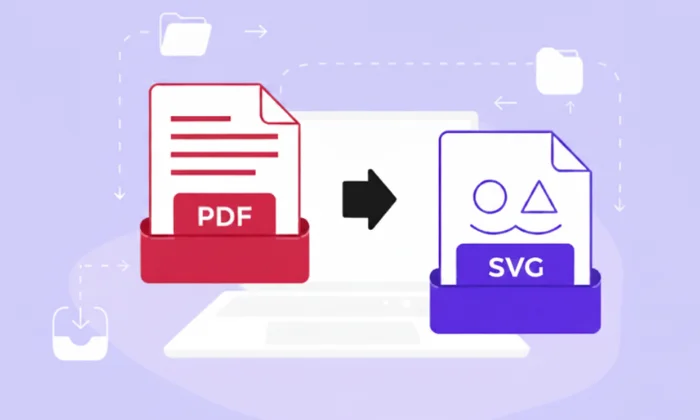
You can turn a PDF into a vector file with the right design software. Adobe Illustrator, CorelDRAW, Affinity Designer, and Inkscape can open PDF files and export vector formats.
However, the result depends on what is inside the PDF. Some PDFs already contain vector paths. Others only contain flat images, scans, or screenshots.
Choose the right software
Use software that can open and edit paths, shapes, and curves.
| Software | Best for | Common export options |
|---|---|---|
| Adobe Illustrator | Logos, print files, and professional editing | AI, EPS, SVG, PDF |
| CorelDRAW | Signs, print shops, and production work | CDR, EPS, SVG, PDF |
| Inkscape | Free basic vector editing | SVG, EPS, PDF |
| Affinity Designer | Budget-friendly design work | SVG, EPS, PDF |
Open the PDF file
Start by opening the PDF in your chosen vector design software. Some programs may ask you to choose a page if the PDF has more than one page.
After that, check the artwork closely. Zoom in on the edges. If the lines stay smooth, the file may already have vector artwork. If the edges look blurry or blocky, the PDF likely contains a raster image.
Check what type of artwork you have
Click on the design elements. If you can select letters, shapes, lines, or colors, your PDF has editable parts.
If you can only select one flat image, the artwork is not a true vector. You will need to trace it.
Clean the file before tracing
Remove anything you do not need. This may include crop marks, extra text, white boxes, hidden layers, or background shapes.
This step keeps the final vector file clean and easy to edit.
Useful cleanup steps:
- Delete extra page items
- Remove unwanted backgrounds
- Fix broken shapes
- Group related parts
- Check color accuracy
- Keep a backup of the original file
Trace the artwork if needed
If the PDF has a flat image, use a trace tool or redraw the design by hand.
Auto trace can help with simple logos and bold shapes. However, it may create rough lines and too many points. Manual tracing gives cleaner results, especially for business logos, labels, and detailed artwork.
For best results, clean up the paths after tracing. Smooth the curves. Remove extra points. Match the original colors as closely as possible.
Convert text to outlines
Fonts can change when someone opens the file on another computer. To avoid this issue, convert text to outlines.
This turns letters into shapes. It helps printers, sign makers, and designers see the correct text style.
Export the final vector file
When the artwork looks clean, save or export it in the format you need.
Common choices include:
- SVG for websites, icons, and cutting machines
- EPS for printing and production
- AI for Adobe Illustrator editing
- CDR for CorelDRAW users
- PDF for sharing a print-ready version
Troubleshooting tips
Sometimes the converted file may not look right. This issue often happens when the original PDF has low-quality images or hidden effects.
Here are simple fixes:
| Problem | Cause | Fix |
|---|---|---|
| Blurry edges | PDF has a flat image | Trace or redraw the artwork |
| Missing fonts | The font is not installed | Convert text to outlines |
| Rough curves | AutoTrace added too many points | Smooth and simplify paths |
| Wrong colors | The color mode changed | Check CMYK or RGB settings |
| File too heavy | Too many extra points | Clean and reduce path points |
Best practices for clean results
Keep the design close to the original. Do not overuse AutoTrace. Verify small details before you export the file.
Also, save more than one format when possible. A printer may need EPS, while a website may need SVG. Having both can save time later.
A clean vector file should stay sharp, open correctly, and work well for printing, cutting, engraving, or branding.
How to Extract a Vector Image from a PDF File?
A Reddit user shared a common issue when extracting vector logos from PDF files.
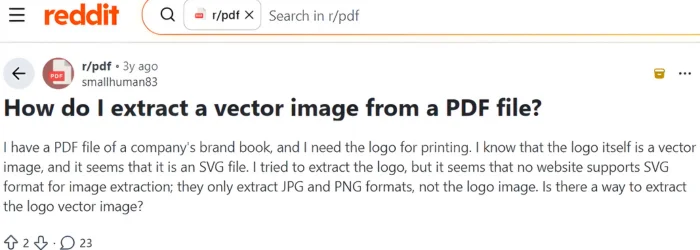
Extracting a vector image means pulling the editable artwork out of the PDF. This process is different from taking a screenshot. A screenshot creates a flat image, not a scalable vector file.
Open the PDF in design software
Use Adobe Illustrator, CorelDRAW, Inkscape, or Affinity Designer. Open the PDF and choose the correct page if the file has more than one page.
Then zoom in on the artwork. If the edges stay smooth, the design may have vector paths.
Select the vector artwork
Click on the logo, icon, or design you want to extract. If you can select lines, shapes, or text separately, the artwork is likely vector.
Use these simple steps:
- Ungroup the artwork if needed
- Remove extra text or page items
- Release clipping masks when needed
- Copy the selected artwork
- Paste it into a new blank file
Save it as a vector file
Export the clean artwork as SVG, EPS, AI, or CDR.
However, some PDFs mix vector art with raster images. If one part looks blurry or acts like a flat picture, you may need to trace or redraw that part.
Before saving, resize the artwork and zoom in again. If it stays sharp and editable, your extracted vector file is ready.
When to choose professional vector art services?
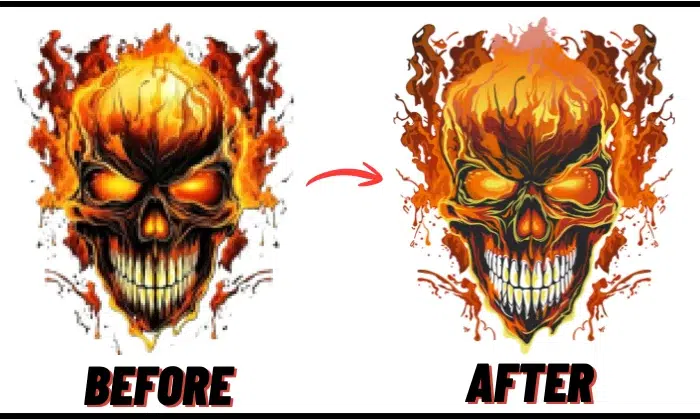
Choose professional vector art services when your artwork must look clean, sharp, and ready for production. DIY tools can help with simple shapes, but they often struggle with detailed logos, low-quality scans, and complex designs.
A professional can redraw the artwork by hand, fix rough edges, match colors, and prepare the right file format. This saves time and helps you avoid print delays.
When expert help makes sense
- Your PDF or image looks blurry
- Your logo has small text or fine lines
- Auto trace gives rough or messy paths
- Your printer asks for AI, EPS, SVG, or CDR files
- You need artwork for signs, labels, shirts, or packaging
- You do not have time to learn design software
Why quality matters
Clean vector art helps printers, cutters, engravers, and designers work with fewer problems. It keeps your design sharp at any size and makes editing easier later.
This matters most for business logos, storefront signs, product labels, uniforms, decals, and marketing materials.
How to choose the right provider
Look for a service that offers clear pricing, fast support, editable file formats, and revision options. Also, check samples before you order.
Turn rough artwork into clean, production-ready vector files with Absolute Digitizing’s Vector Art services. We help you save time, avoid print issues, and get artwork that is ready for logos, labels, shirts, signs, and custom products.
Final Thoughts
A PDF can be useful, but it is not always a true vector file. It may hold clean vector art, or it may only contain a flat image. That is why you should check the file before using it for printing, cutting, engraving, or branding.
Vector files stay sharp, scale well, and make editing much easier. You can use free tools for simple artwork, but complex logos and low-quality files often need expert tracing.
Ready to make your artwork clean, sharp, and production-ready? Contact Absolute Digitizing for professional vector art services and get a free quote today.
FAQs
No. A PDF can hold vector artwork, text, or flat images. Some PDFs are fully editable, while others only contain a scanned image or JPG.
Yes, but you need to trace or redraw it. A scanned PDF is usually a flat image, so it does not have editable paths.
It depends on your use. SVG works well for websites and cutting machines. EPS and AI work well for printing and professional editing.
Yes. Free tools like Inkscape can help with simple designs. However, detailed logos may still need manual cleanup for clean results.
Your PDF may contain a raster image, such as JPG or PNG. Raster images use pixels, so they can lose quality when you make them larger.