JPG or PNG can look perfect on a screen, but a Janome embroidery machine cannot read it like a computer. It needs stitch instructions, not pixels. That is where a JEF file comes in. JEF is a stitch-based format used by many Janome machines. It tells the machine where to stitch, when to trim, and how to handle color changes.
One thing to remember: image-to-JEF conversion is rarely a flawless one-click job. Clean embroidery needs stitch logic, neat outlines, correct density, and smart pathing. This matters even more for small text and fine details. In this guide, you will learn the best tools to use, the exact steps to convert, and simple tips to improve stitch quality.
If you are on a tight deadline or dealing with a complex logo, a professional digitizing service can cut the learning curve. It also lets you focus your time and resources on your business while you get a clean, production-ready JEF with consistent results.
- Image vs Embroidery File: The Key Difference
- Before You Convert: Prep the Image for a Cleaner JEF
- Best Tools to Convert Image to JEF: Choose Your Route
- Step-by-Step: Convert an Image to JEF Using Digitizing Software
- Transfer the JEF to Your Janome Machine
- Test Stitching: The Step People Skip (But Shouldn’t)
- Common Problems When Converting to JEF (And Fixes)
- Why Hire Professional Digitizing Services
- Quick Checklist and Conclusion
Image vs Embroidery File: The Key Difference

Images Use Pixels and Colors, Embroidery Uses Stitches and Rules
A JPG, PNG, or SVG is designed to look good on a screen. It stores shapes and colors as pixels or vectors. A JEF (and other embroidery formats) is not a picture at all. It is a stitch map that tells the machine what stitch type to use, which direction to sew, how dense the stitches should be, and when to trim, jump, or change colors.
Why Auto-Convert Often Looks Messy
Most auto-convert tools try to guess stitch logic from pixels. That guesswork creates problems like too many stitches, uneven fills, rough edges, and tiny gaps. Small text and thin lines are usually the first to fail because the software cannot decide the right stitch type, width, or pathing.
What Happens When Conversion Goes Wrong
Bad settings show up on fabric fast. You may get thread breaks from heavy density, puckering from excess pull, and shapes that shift or shrink. Text can also distort and become hard to read, especially in small sizes.
Before You Convert: Prep the Image for a Cleaner JEF

Choose the Right Image Type First
Not every image converts well. Simple logos, icons, and bold shapes usually give the cleanest JEF results because they have clear edges and solid areas. Photos are the hardest. A photo can be digitized, but it needs real stitch planning, and it often requires manual work to avoid messy fills and ugly outlines.
Do a Quick Clean-Up Before Importing
A little prep saves a lot of editing later. Use this checklist before you convert:
-
Start with a high-resolution image and sharp, clean edges.
-
Remove the background so only the design remains.
-
Limit the number of colors. Around 3–8 colors is easier to control and usually stitches cleaner.
-
Thicken very thin lines, because tiny strokes can disappear when stitched.
-
Simplify tiny details that will not show up on fabric, especially at small sizes.
Decide the Final Size Before You Convert
Set your target embroidery size first because size changes affect everything. A left chest logo needs different settings than a cap or a tote bag. If you digitize for 4 inches and later shrink it to 2.5 inches, text can break down and density can become too heavy.
Best Tools to Convert Image to JEF: Choose Your Route
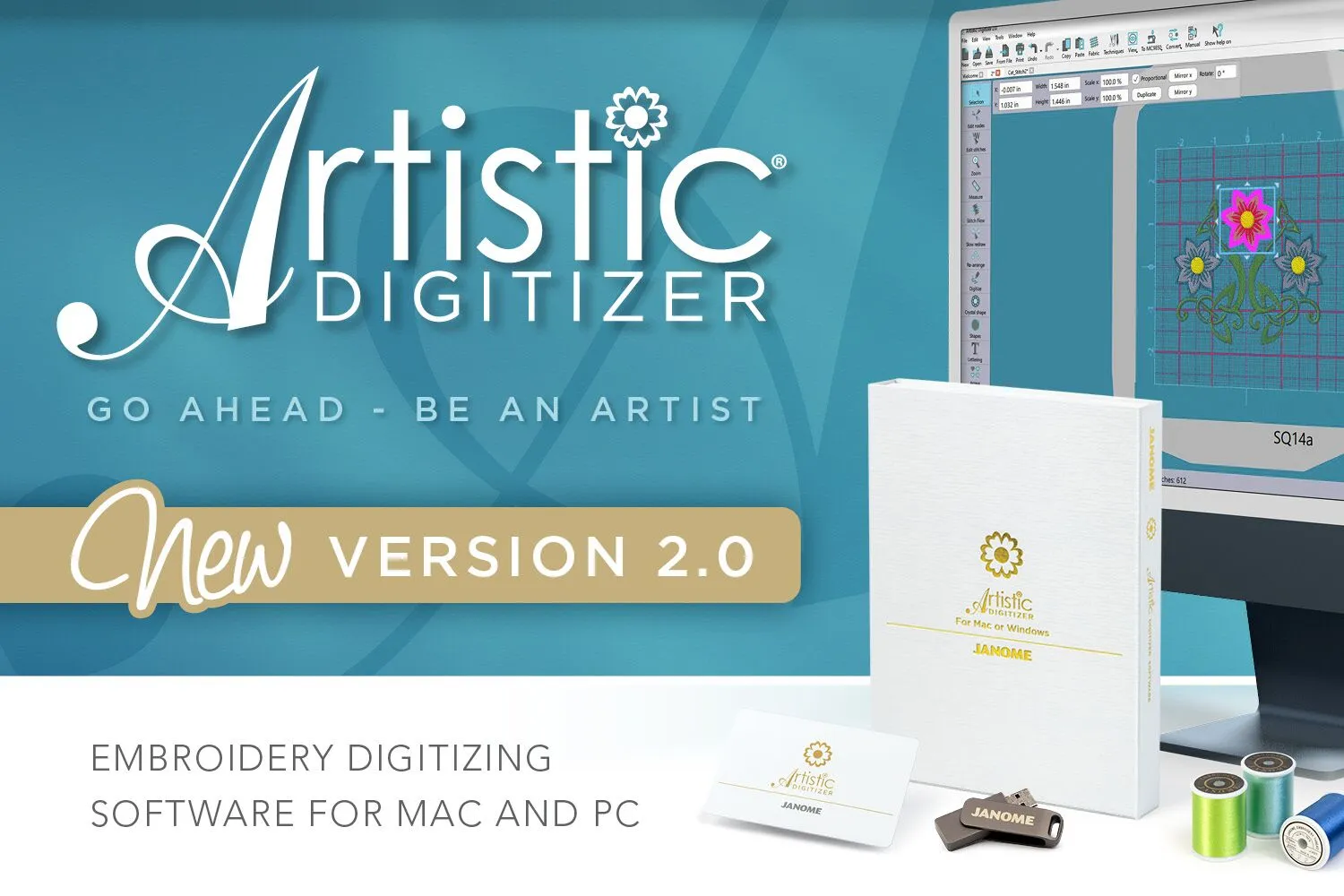
Option A: Janome Digitizer (Digitizer MBX / Artistic Digitizer)
If your main goal is clean compatibility, Janome’s own software is usually the safest route. The workflow is built around Janome machines, so exporting to JEF is straightforward and reliable. You also get stronger control over stitch types, density, and sequencing compared to basic converters. This matters when you want smooth satin borders, readable text, and fewer trims. For many users, Janome software is the “least surprise” option because what you preview is closer to what the machine will stitch.
Option B: Wilcom or Hatch (Export to JEF)
Wilcom and Hatch give you more professional-level digitizing control. You import your artwork, build the stitch file properly, then export to JEF (or use compatible export routes depending on your setup). These tools shine when a design needs clean edges, smart pathing, and stable underlay. They also help a lot with small lettering and fine details, where cheap converters struggle.
Option C: Free or Cheap Auto-Converters
Auto-converters can work for basic shapes and simple clipart. But they often fail with text, small details, satin borders, and realistic shading. The result is usually extra stitches, gaps, and rough edges. “Free” can quickly turn into wasted fabric, thread, and test runs.
Step-by-Step: Convert an Image to JEF Using Digitizing Software

Step 1: Import Your Image (JPG/PNG/SVG)
Start by importing your artwork into your digitizing software. If you have a logo, SVG is usually the cleanest because it keeps edges sharp and easy to trace. If your design is a raster image, use a PNG with a transparent background so you are not accidentally digitizing a white box behind the logo. Before moving on, confirm the design is clean, centered, and not blurry, because messy artwork creates messy stitches.
Step 2: Set Hoop Size and Machine Parameters
Choose the hoop size you will actually stitch on, such as 4×4 or 5×7, so the software does not crop the design later. Set the correct machine profile if your software asks for it, and make sure your Janome model supports the final design size and stitch count. Some machines have limits, and a file can load but fail to stitch properly if it is too large or too dense.
Step 3: Choose Your Digitizing Method
Decide whether you will auto-digitize or do a manual/semi-manual build. Auto-digitize can be fine for simple shapes and solid areas. Manual work is best for text, outlines, and clean satin columns, where precision matters. If you want a professional-looking result, you usually combine both: auto for basic fills, manual for the parts people notice first.
Step 4: Assign Stitch Types Correctly
Use satin stitches for borders and lettering when the width is sufficient to produce a clean, smooth column. Apply fill stitches to larger areas to maintain stability and prevent excessive thickness. For fine lines, small details, and subtle outlines, rely on running stitches. This is the stage where the artwork stops looking like a simple conversion and starts to feel like true embroidery.Step 5: Set Underlay (Often the Difference Between “Okay” and “Pro”)
Underlay is the foundation stitching that supports the top layer. It improves stability, helps coverage, and reduces fabric sinking. A simple edge-run underlay can sharpen borders, while a tatami or zigzag underlay can help fill areas look smoother. If your underlay is wrong or missing, the top stitches can look uneven even if everything else is correct.
Step 6: Adjust Density and Pull Compensation
Density controls how tight the stitches pack together. Too high can cause puckering, stiffness, and thread breaks. Too low can show fabric through the design. Pull compensation helps borders and shapes stay true by slightly widening edges to fight natural fabric pull. Small tweaks here can fix big visual problems.
Step 7: Set Stitch Direction and Clean Pathing
Stitch direction affects shine and texture, especially on satin and fill areas. Adjust angles so the design looks intentional and consistent. Then clean the pathing to reduce jumps and trims. Better pathing means smoother stitching, fewer stops, and less chance of misalignment.
Step 8: Preview and Fix Problem Areas
Zoom in and inspect text, corners, overlaps, and tiny gaps. Remove stray stitches, reduce messy nodes, and clean areas where stitches stack too heavily. If a section looks suspicious in preview, it will look worse on fabric, so fix it now.
Step 9: Export as JEF
Use Export / Save As → .JEF and save a copy with a clear name. Keep a separate editable master file too, so you can adjust later without starting over.
Transfer the JEF to Your Janome Machine
The easiest method is a USB drive. Copy the JEF file to the USB, then insert it into your Janome machine and load the design from the machine’s file menu. Some Janome models prefer a simple folder structure, so avoid deep folders and keep the file easy to find. Also avoid long filenames and special characters, because some machines fail to display them correctly. Before you start stitching, do a quick test load on the machine to confirm the design shows up at the right size and orientation.
Test Stitching: The Step People Skip (But Shouldn’t)
Always run a test stitch on similar fabric and stabilizer before stitching a real item. This is the fastest way to catch issues that previews cannot fully predict. Check letter clarity, border coverage, and registration (alignment between sections). Look closely for puckering around dense areas and small text. After the test, make small targeted tweaks: adjust density, add or change underlay, increase pull compensation on borders, or change stitch angles to reduce distortion. One quick test can save you multiple ruined garments and a lot of wasted time.
Common Problems When Converting to JEF (And Fixes)
Problem: Text Looks Unreadable
Cause: The text is too small, the stitch type is wrong, or the density and pathing are not suited for lettering. Auto-convert also tends to overcomplicate small letters with extra nodes and awkward angles.
Fix: Increase the text size, simplify the font, and use satin only when the column width allows it. For tiny text, switch to a running stitch or a lighter fill approach. Clean the pathing to reduce unnecessary trims and make letters stitch in a smoother order.
Problem: Edges Look Jagged
Cause: The artwork is low-resolution, or the satin border is not set up cleanly. Too many points (nodes) can also create shaky outlines.
Fix: Start with a cleaner file (SVG if possible) or a higher-resolution PNG. Smooth the outline, reduce nodes, and add a proper edge-run underlay. If using satin borders, make sure the width is consistent and not too narrow.
Problem: Fabric Puckers
Cause: Density is too high, stabilizer is not strong enough, or underlay is missing or weak.
Fix: Reduce density slightly, choose the right stabilizer for the fabric, and add supportive underlay. Also check stitch direction and sequencing so large areas do not pull the fabric in one direction.
Problem: Thread Breaks
Cause: Excess density, sharp stitch angles, too many trims/jumps, or heavy stitch buildup in one spot.
Fix: Lower density, soften sharp corners, and improve pathing to reduce stops and trims. Remove overlapping stitch stacks and keep transitions cleaner.
Problem: Design Shifts or Distorts
Cause: Pull compensation is missing, or stitch direction fights fabric stretch and causes drag.
Fix: Add pull compensation to borders and key shapes. Adjust stitch angles to balance pull, and test stitch to fine-tune for that fabric type.
Why Hire Professional Digitizing Services
When DIY Conversion Is Totally Fine
DIY conversion works well when the design is simple and forgiving. If you are stitching a basic icon, bold shapes, or a practice project for yourself, you can usually get acceptable results with careful settings and a couple of test runs. It is also a good way to learn how stitch types, density, and underlay affect the final look on fabric.
When Outsourcing Becomes the Smarter Move
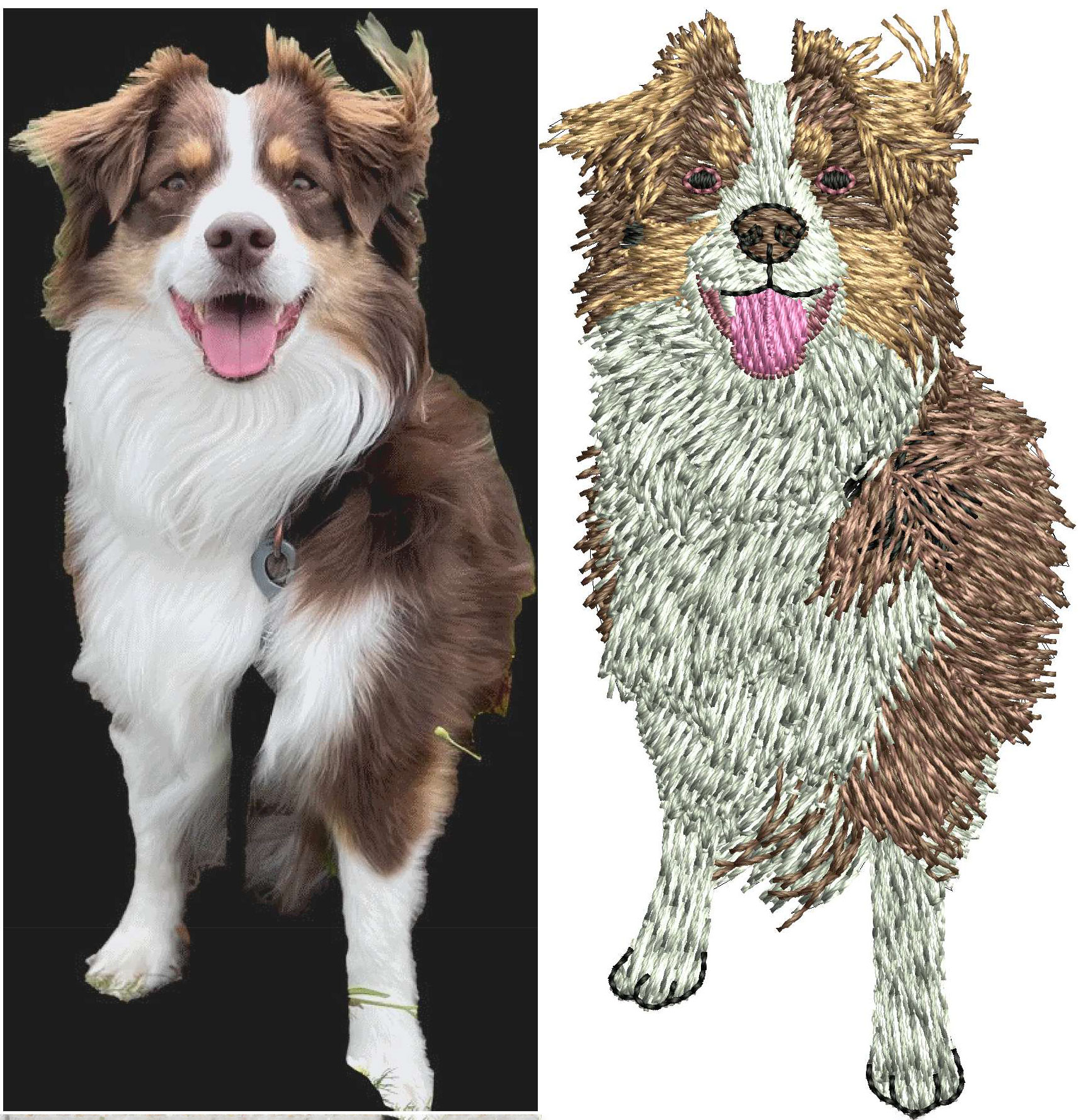
Hiring a professional becomes practical when results matter more than experimentation. Customer orders, tight deadlines, and bulk production leave little room for trial-and-error. The same goes for designs that are technically demanding, like tiny text, cap logos, puff foam, detailed borders, or realistic images. These jobs often need clean pathing, strong underlay planning, and correct pull compensation to avoid distortion.
The Real Benefit
A professional digitizer can deliver a production-ready JEF that stitches cleaner, wastes less fabric and thread, and usually needs fewer stitch-outs to dial in. That means fewer surprises at the machine and more time spent actually producing.
Quick Checklist and Conclusion
Before you convert, run through this simple checklist: clean artwork → choose the correct hoop size → assign the right stitch types → add proper underlay → adjust density and pull compensation → do a test stitch → then export as JEF. If you are new to this, start with small, simple designs and improve through testing. One clean test on the right fabric and stabilizer teaches you more than guessing settings on screen.
And remember, not every design is worth wrestling with. For complex images, tiny lettering, caps, or important customer orders, professional digitizing can save time, reduce wasted materials, and help you avoid costly mistakes while getting a clean, production-ready JEF file.
Get your image converted to JEF File by visiting us at Absolute Digitizing.